

1. DVR, Ae, Pr, FCP video plugin Activation
1. Buy the Subscription or Lifetime plan on our website. Go to Products, select the host, the plugin and hit the Pricing button. Choose your plan and proceed to the payment.
Attention! Subscription activation requires an updated product and may not work with legacy versions. Please follow the Dehancer Updates section of this manual to update your product.
2. Navigate to the bottom of Dehancer plugin interface, find the Options section and click the License info button.
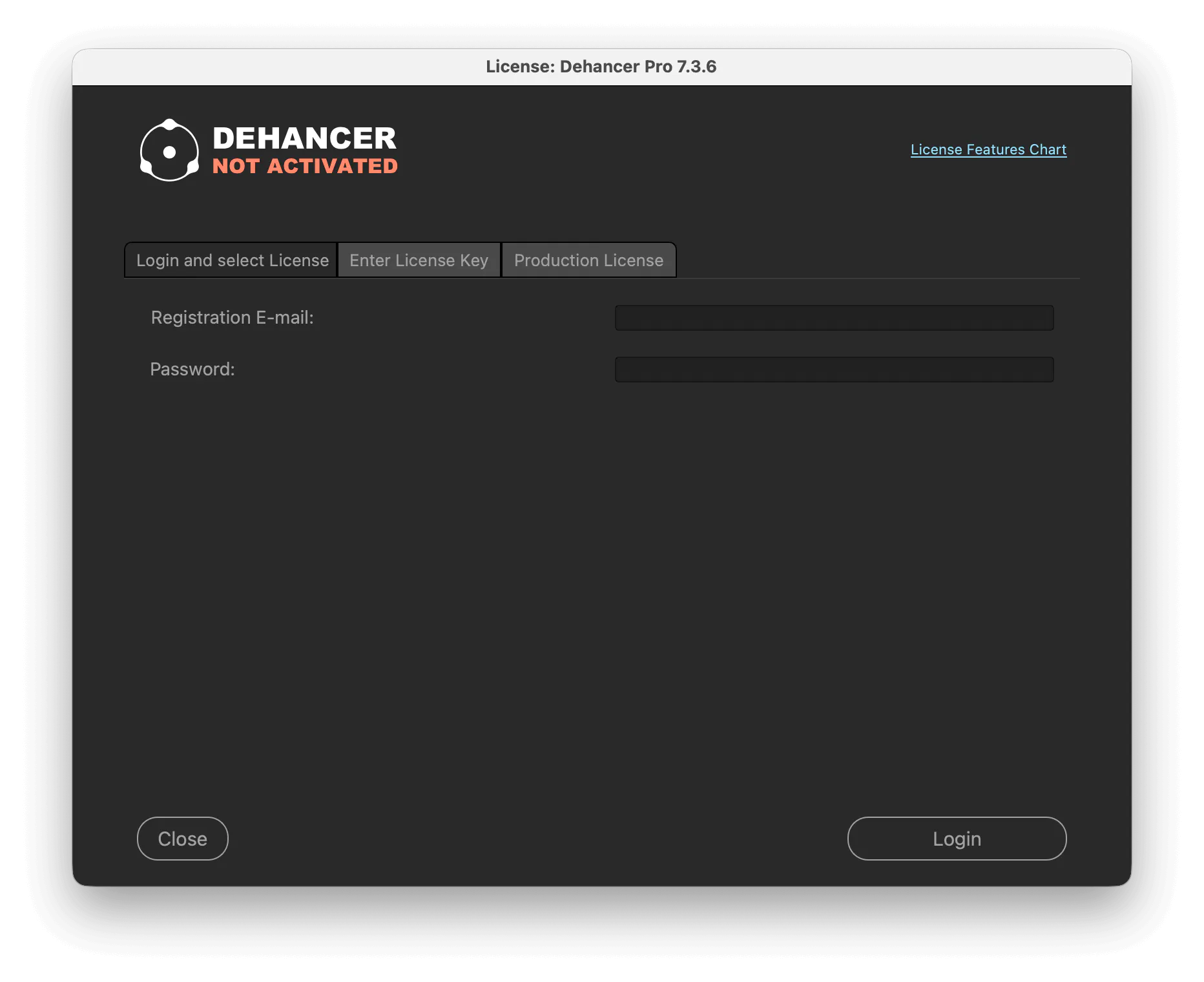
3. The License widget will open. There are two main options available:
• Login and select License (for Subscriptions and Lifetime plans)
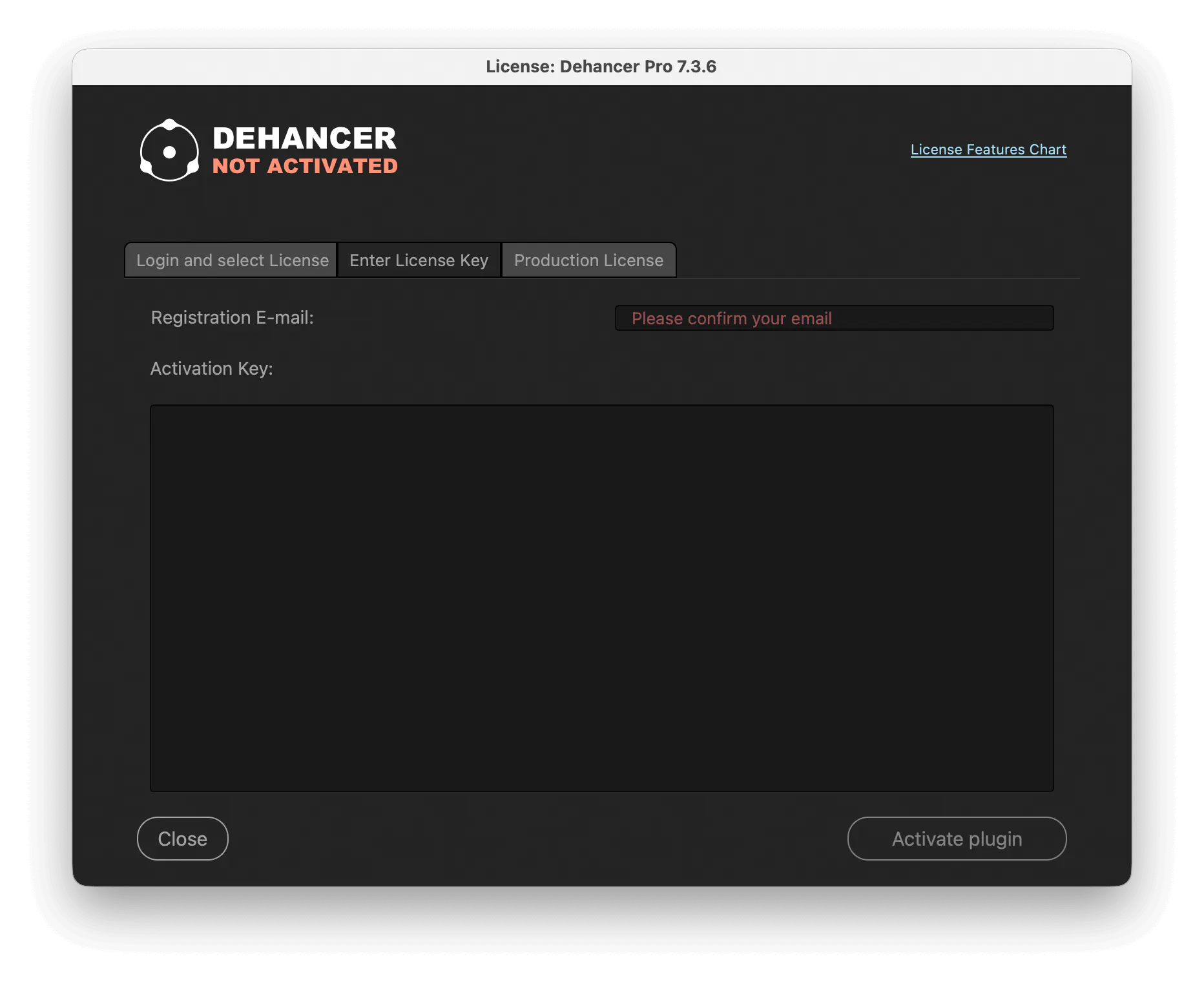
• Enter License Key (for Lifetime plans)

Login and select License (Subscriptions and Lifetime plans)
1. Login with your Dehancer account.
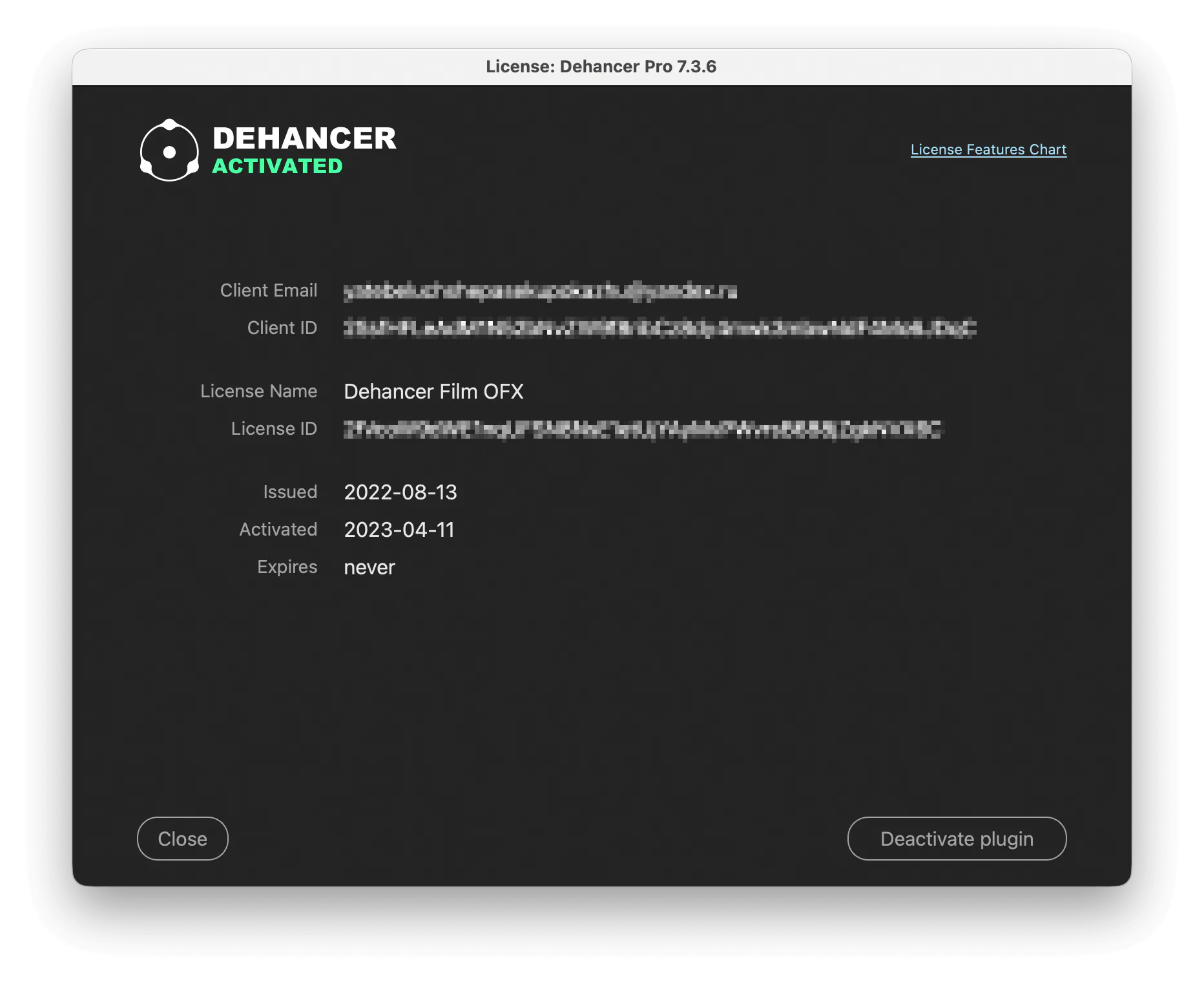
2. You will be presented with a list of Licenses available for your product. Select a Seat from the list, then press Activate plugin:
Enter License Key (Lifetime plans)
1. Paste your registration e-mail and Activation Key from the letter you’ve received after purchasing the License. Press Activate plugin.
2. After the Activation is complete, close the widget and restart.
2. Ps, Lr, C1, APh photo plugin Activation
1. Buy the Subscription or Lifetime plan on our website. Go to Products, select the host, the plugin and hit the Pricing button. Choose your plan and proceed to the payment.
Attention! Subscription activation requires an updated product and may not work with legacy versions. Please follow the Dehancer Updates section of this manual to update your product.
The notification will be sent to your email and displayed in your User Profile as well.

2. Open plugin Settings (the gear icon) to launch the Activation widget and hit the Activate Dehancer button.
3. There are two main options available:
• Login and select License (for Subscriptions and Lifetime plans)
• Enter License Key (for Lifetime plans)
Login and select License (Subscriptions and Lifetime plans)
1. Login with your Dehancer account.
2. You will be presented with a list of Licenses available for your product. Select a Seat from the list, then press Activate plugin:
Enter License Key (Lifetime plans)
Paste your registration e-mail and Activation Key from the letter you’ve received after purchasing the License. Press Activate plugin.
Enjoy!
Attention!
- Internet connection is needed for Activation.
- Activation via Login doesn’t work with Beta Licenses
** Please don’t forget to Deactivate from within the plugin interface BEFORE migrating your computer or reinstalling the System.
Dehancer Photo plugin for Ps / LrC / C1 includes two separate installations – for Adobe Photoshop and for LrC / C1. Both installations share the same Activation Key.
3. Baselight video plugin Activation (macOS)
1. Buy the Subscription or Lifetime plan on our website. Go to Products, select the host, the plugin and hit the Pricing button. Choose your plan and proceed to the payment.
Attention! Subscription activation requires an updated product and may not work with legacy versions. Please follow the Dehancer Updates section of this manual to update your product.
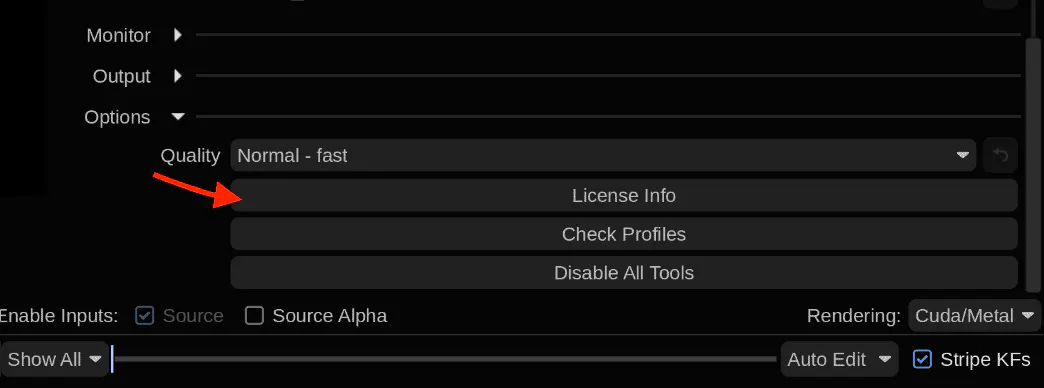
2. Navigate to the bottom of Dehancer plugin interface, find the Options section and click the License info button.
The License widget can only be launched by the same system User who has installed the plugin.
3. The License widget will open. There are two main options available:
• Login and select License (Studio plan)
Login and select License (Studio plans)
Studio Subscription requires internet access to activate the plugin. If your workstation is not connected to the internet, please contact your admin and the license owner.
1. Login with your Dehancer account.
2. You will be presented with a list of Licenses available for your product. Select a Seat from the list, then press Activate plugin.
Once logged in, the temporary authorisation token is created, and you don’t have to login every time to manage your seats.
Command Line Activation Tool (macOS)
For your convenience, a command-line activator is bundled with Baselight plugin, for a more streamlined experience when solving specific technical issues.
Run the command line Activator Tool in Terminal.app:
/Library/OFX/Plugins/
DehancerBaselightProCuda_x86_64_v7.ofx.bundle/Contents/
Resources/activator
Command line options:
Online Activation: activator login <your_dehancer_login>
Offline Activation: activator dpls <dpls_url>
Detailed info and options: activator --help
Example:
xxx:/usr/OFX/Plugins/DehancerBaselightProCuda_x86_64_v7.ofx.bundle/
Contents/apps$ ./activator login [email protected]
Baselight video plugin Activation (Linux)
1. Buy the Subscription or Lifetime plan on our website. Go to Products, select the host, the plugin and hit the Pricing button. Choose your plan and proceed to the payment.
Attention! Subscription activation requires an updated product and may not work with legacy versions. Please follow the Dehancer Updates section of this manual to update your product.
2. Navigate to the bottom of Dehancer plugin interface, find the Options section and click the License info button.
The License widget can only be launched by the same system User who has installed the plugin.
3. The License widget will open. There are two main options available:
• Login and select License (Studio plan)
Login and select License (Studio plans)
Studio Subscription requires internet access to activate the plugin. If your workstation is not connected to the internet, please contact your admin and the license owner.
1. Login with your Dehancer account.
2. You will be presented with a list of Licenses available for your product. Select a Seat from the list, then press Activate plugin.
Baselight TWO / Baselight X plugin Installation and Activation (Linux)
With Baselight TWO / Baselight X there is no GUI Activator, you should run the Installer on the render node, and the node is licensed, as recommended by Filmlight. Please follow these steps:
1. Run installer on the node, not on the GUI host.
2. After the installation is complete run the command line Activator Tool:
/usr/OFX/Plugins/DehancerBaselightProCuda_x86_64_v7.ofx.bundle
/Contents/apps/activator
Use the following command line options:
Online Activation: activator login <your_dehancer_login>
Offline Activation: activator dpls <dpls_url>
Detailed info and options: activator --help
Example:
xxx:/usr/OFX/Plugins/DehancerBaselightProCuda_x86_64_v7.ofx.bundle/
Contents/apps$ ./activator login [email protected]
3. After your seat is activated, the Profile Update process will be performed automatically. Also you can use the GUI profile downloader for further updates.
4. Plugin Deactivation
Please do not forget that before removing the plugin, reinstalling the system or changing the computer, you need to Deactivate the key through the Dehancer interface of the version with which you activated the key (License Info button). Using this method, you can make an unlimited number of Deactivations.