

How to activate the plugin offline?
Dehancer Production License Server:
How to activate the plugin offline?
Production plan users get the activation data from the local Dehancer Production License Server.
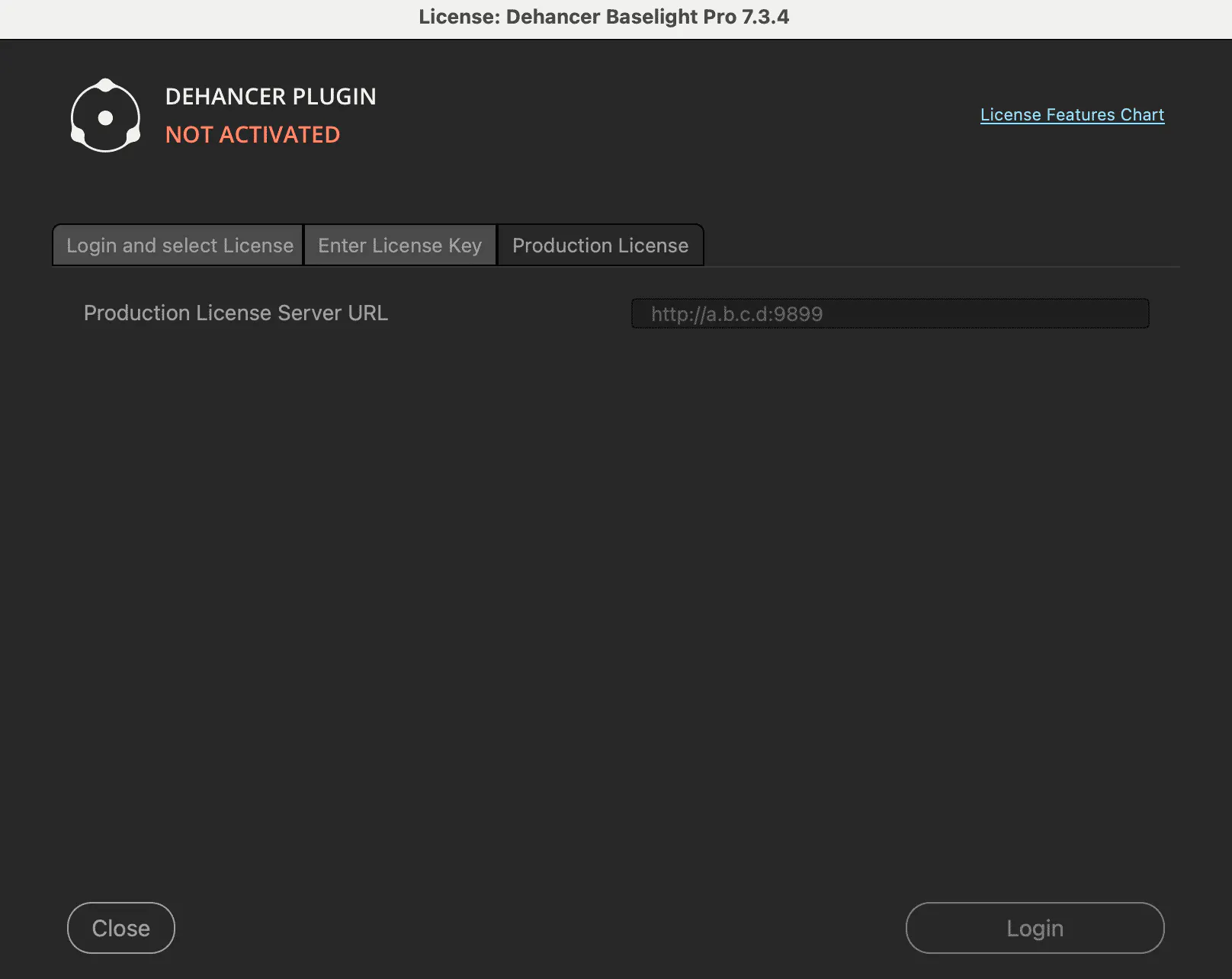
1. Enter your Dehancer Production License Server URL you’ve received from your admin or the license owner. Press Login.
2. After the activation is complete, close the widget and restart your host.
Dehancer Production License Server
Dehancer Production License Server (DPLS) provides local network activation for Dehancer plugins, including fully air-gapped production environments.
DPLS is delivered as a standalone server binary for Linux (aarch64 and x86_64) and macOS (both Intel and Apple Silicon).
System requirements
Hardware: none. DPLS is immeasurably tiny, so a VM with 512MB ram would be sufficient.
Supported platforms:
- Linux on x86_64 or aarch64 (aka ARM);
- macOS on Apple Silicon or Intel.
Use a recent Linux distribution or a recent macOS release. Debian is recommended for Linux deployments.
The Linux binary is only linked against system libraries, so no additional dependencies are necessary. Same for macOS.
Installation
Start the server
Download and extract the archive
Download the archive for your platform:
- `dpls_darwin-arm64_<version>.tar.xz` - for recent macOS on Apple Silicon;
- `dpls_darwin-x64_<version>.tar.xz` - for macOS on an ancient Intel Mac you long forgot you had;
- `dpls_linux-arm64_<version>.tar.xz` - for Linux on ARM;
- `dpls_linux-x64-baseline_<version>.tar.xz` - for Linux on Intel.
Extract the archive to the installation directory. We use `/srv/dpls` in examples assuming Linux. On macOS that would be `/Applications/dpls`.
DPLS does not run as root. Make sure the installation directory and data directory are readable and writable by the user that runs `dpls`.
The binary inside every archive is named `dpls`.
Choose a data directory
DPLS requires a data directory specified with `--datadir`. This directory stores DPLS configuration and activation data.
Recommended location: `/srv/dpls/data` on Linux and `/Library/Application Support/dpls` on macOS.
DPLS creates the directory automatically if it does not exist.
Choose the listen address and port
By default, DPLS listens on `0.0.0.0` (all network interfaces) and port `9899`.
Use `--host` and `--port` to change the listen address:
		/srv/dpls/dpls \
  --datadir /srv/dpls/data \
  --host 192.168.0.1 \
  --port 9899
The selected address and port must be reachable from workstations running Dehancer plugins.
This IP and port are used to construct the URL for Dehancer plugins to connect to in the web UI, so we suggest you specify the LAN address instead of the `0.0.0.0`.
Start the server
Example:
		/srv/dpls/dpls \
  --datadir /srv/dpls/data
To see available command-line options:
/srv/dpls/dpls --help
Note: failed to run on macOS? As it is customary, don't forget to clear the macOS quarantine flag:
xattr -cr /srv/dpls/dpls
systemd example
On Linux, DPLS can be run as a systemd service. Set `User=` to the account that owns the installation and data directories and set `--host` to the LAN address.
		[Unit]
Description=Dehancer \
  Production License Server
After=network-online.target
Wants=network-online.target

[Service]
ExecStart=/srv/dpls/dpls \
  --datadir /srv/dpls/data \
  --host <server ip> \
  --port 9899
User=<user>
Restart=on-failure

[Install]
WantedBy=multi-user.target
Paste this file to `/etc/systemd/system/dpls.service`.
Then:
		systemctl daemon-reload
systemctl enable --now dpls
launchd example
On macOS, DPLS can be run as a system LaunchDaemon. Set `UserName` to the account that owns the installation and data directories and set `--host` to the LAN address.
Paste this file to `/Library/LaunchDaemons/com.dehancer.dpls.plist`.
		<?xml version="1.0" encoding="UTF-8"?>
<!DOCTYPE plist
PUBLIC "-//Apple//DTD PLIST 1.0//EN"
"http://www.apple.com/DTDs/PropertyList-1.0.dtd">
<plist version="1.0">
<dict>
  <key>Label</key>
  <string>com.dehancer.dpls</string>

  <key>ProgramArguments</key>
  <array>
    <string>/Applications/dpls/dpls</string>
    <string>--datadir</string>
    <string>
      /Library/Application Support/dpls
    </string>
    <string>--host</string>
    <string>1.2.3.4</string>
    <string>--port</string>
    <string>9899</string>
  </array>

  <key>UserName</key>
  <string>bob</string>

  <key>RunAtLoad</key>
  <true/>

  <key>KeepAlive</key>
  <true/>
</dict>
</plist>
Then:
		sudo launchctl bootstrap system \
  /Library/LaunchDaemons/com.dehancer.dpls.plist
sudo launchctl enable \
  system/com.dehancer.dpls
sudo launchctl kickstart -k \
  system/com.dehancer.dpls
Initial configuration
Open the DPLS URL in a web browser:
http://<server-address>:9899
On first launch, DPLS shows the setup screen. Create the administrator username and password, then paste your Dehancer Production License key.
DPLS validates the Production License key offline. The server does not require internet access for setup, activation, or profile delivery.
After setup, the web UI shows the DPLS URL that should be entered in Dehancer plugins on workstations.
The web UI also lets administrators view and rename activated workstations, replace the Production License key, etc.
Using Dehancer Plugins with DPLS
Download the latest release of the desired plugin and install on each workstation.
To activate a plugin through DPLS:
- Open the plugin activation dialog;
- Select the Production License tab;
- Enter the DPLS URL, for example:
http://192.168.0.1:9899
After activation, Dehancer plugins fetch Film Profiles from DPLS automatically. Film Profiles are embedded in the DPLS binary, so no separate profile download or import step is required on the server.
Note: in air-gapped networks, do not try to download Film Profiles from the public internet before activation. Activate the plugin through DPLS first.
Updating DPLS
To update DPLS:
- Stop the running server;
- Replace the `dpls` binary with the new version;
- Start the server again.
The data directory does not need to be changed. Updated Film Profiles are included in the new binary when Film Profile updates are shipped with a DPLS release.
Backup and restore
Add the DPLS data directory to your normal backup process.
If the data directory is restored on another server, existing workstation activations continue to work as long as the workstations can reach the restored DPLS instance at the configured URL. If the server address changes, update the DPLS URL in the Dehancer plugins.
If the data directory is lost, start DPLS again and repeat initial setup with your Production License key. Workstations may need to be activated again but otherwise no critical data is stored with DPLS other than the license and the list of activated workstations.