

💡 For a better reading experience, download the PDF version of the manual.pdf
- First Launch
- Color Spaces
- Display Setup
- Application Settings
- Interface
- Browser
- Projects
- Editor
- Photo Editing Pipeline
- RAW Setings
- Crop
- Source
- Film Profiles
- Film Developer
- Film Compression
- Expand
- Print Media
- Print Setings
- CMY Color Head and Print Toning
- Film Grain
- Halation
- Bloom
- Film Damage
- Overscan
- Vignete
- Output
- User Data and Backups
- Uninstall
First Launch
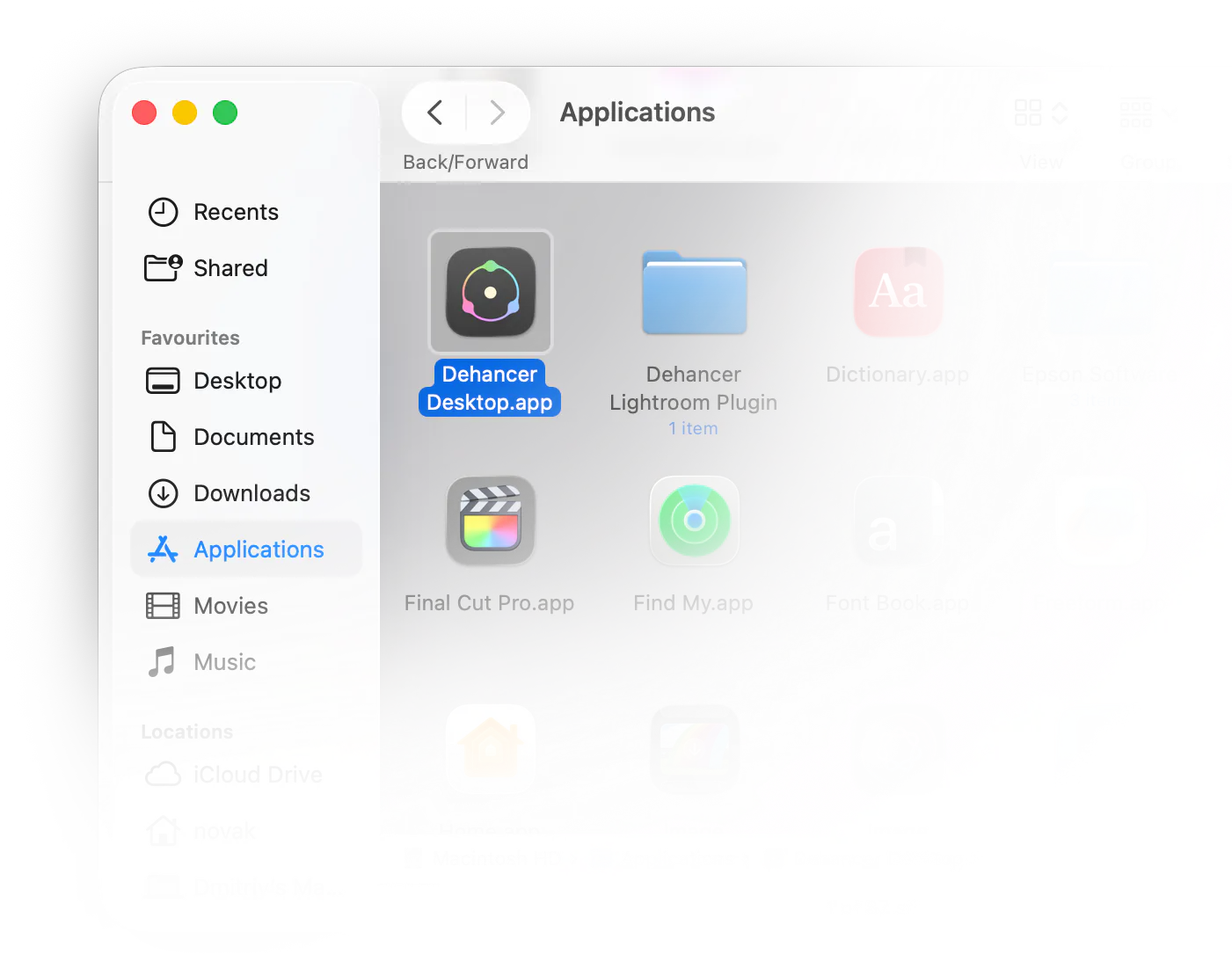
Welcome to Dehancer Desktop!
After the installation, please find the new app in your Applications / Programs folder, or in the Start Menu. On first launch, the operating system may ask permission to access files and folders – please allow it if prompted.
Downloading Film Profiles
When you open the app for the first time, you’ll be asked to download film profiles.
You can always check for updates in Application Settings [S].
License Activation
To remove the watermark, get a Subscription or a Lifetime License.
If you already have an active Subscription or a Lifetime, open Settings and sign in with your Dehancer Account to activate your seat.
Color Spaces
Supported Color Spaces
Dehancer natively supports the following color profiles and pipelines:
- sRGB IEC61966-2.1
- AdobeRGB (1998)
- ProPhoto RGB
- Display P3
- Beta RGB
+ embedded icc profiles
When opening a photo, Dehancer tries to extract the embedded profile and select the color space automatically. If it fails to for some reason, the default sRGB IEC61966-2.1 profile is applied.
RAW photos are processed in sRGB and converted to your current display color profile for preview and export.
Normally, the Output space is the same as the Input space, if it matches the system color profile. All color transformations are performed automatically in a virtually unlimited internal space.
Film and Print Color Gamut
A fresh, properly developed color slide film may produce a vibrant image slightly wider than sRGB. However, it complicates scanning, display and printing on a typical analogue media, where the gamut does not exceed sRGB.
Usually, film emulation doesn’t require the gamut wider than sRGB, due to the natural range of the print.
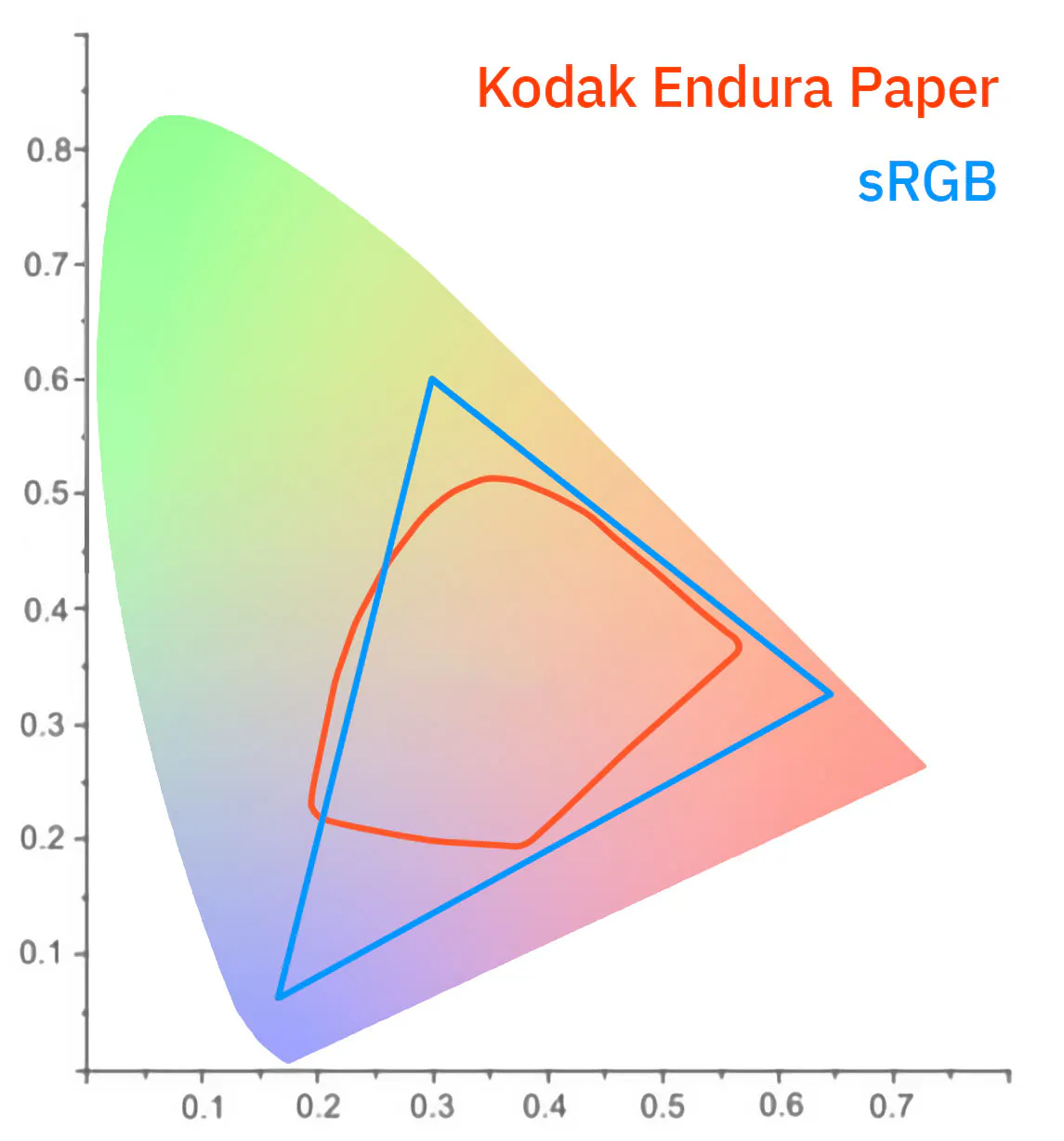
As you can see, there is no theoretical or practical benefits in a wide gamut color spaces for film emulation. You can use various color pipelines, but the extended gamut does not belong to the analogue media.
This does not prevent using modern screens and projectors with wide gamut and HDR support for viewing. With proper output adjustment, the film will look good. However, sRGB is generally sufficient for processing.
Display Setup
It is important that the color management is consistent throughout the entire processing and viewing pipeline.
- Set your display to its native sRGB color gamut and gamma if possible.
- Use the appropriate calibration profile built especially for your display.
Recommended settings:
Color gamut: sRGB
Gamma: 2.2 (pure power)
White point: 5500K (D55)
Luminance: 80-120 cd/m²
Black point: Native
You may prefer another supported working space, be it AdobeRGB or Display P3. In this case Dehancer reads you system color profile and applies the conversion to match color settings across the system.
On Mac you can use the Internet and Web (sRGB) reference profile provided with your modern MacBook Pro, Apple Studio Display and Pro Display XDR. This will not replace the hardware-assisted profiling, but is good enough for non-critical jobs.
On Windows system color management can be unstable. Display ICC profile may fail to load at system startup or be reset by automatic updates. Check display settings eventually.
If everything is set up properly, but the colors don’t match, please contact our support team.
Application Settings

To open Application Settings, click the [Gear] button on the toolbar, or press [S].
License Activation
You can check your Subscription status here.
Press [Activate Dehancer] button to open the activation widget. Sign in with your account and select a seat to activate Dehancer.
After activation, you can Manage Your License in the same widget.
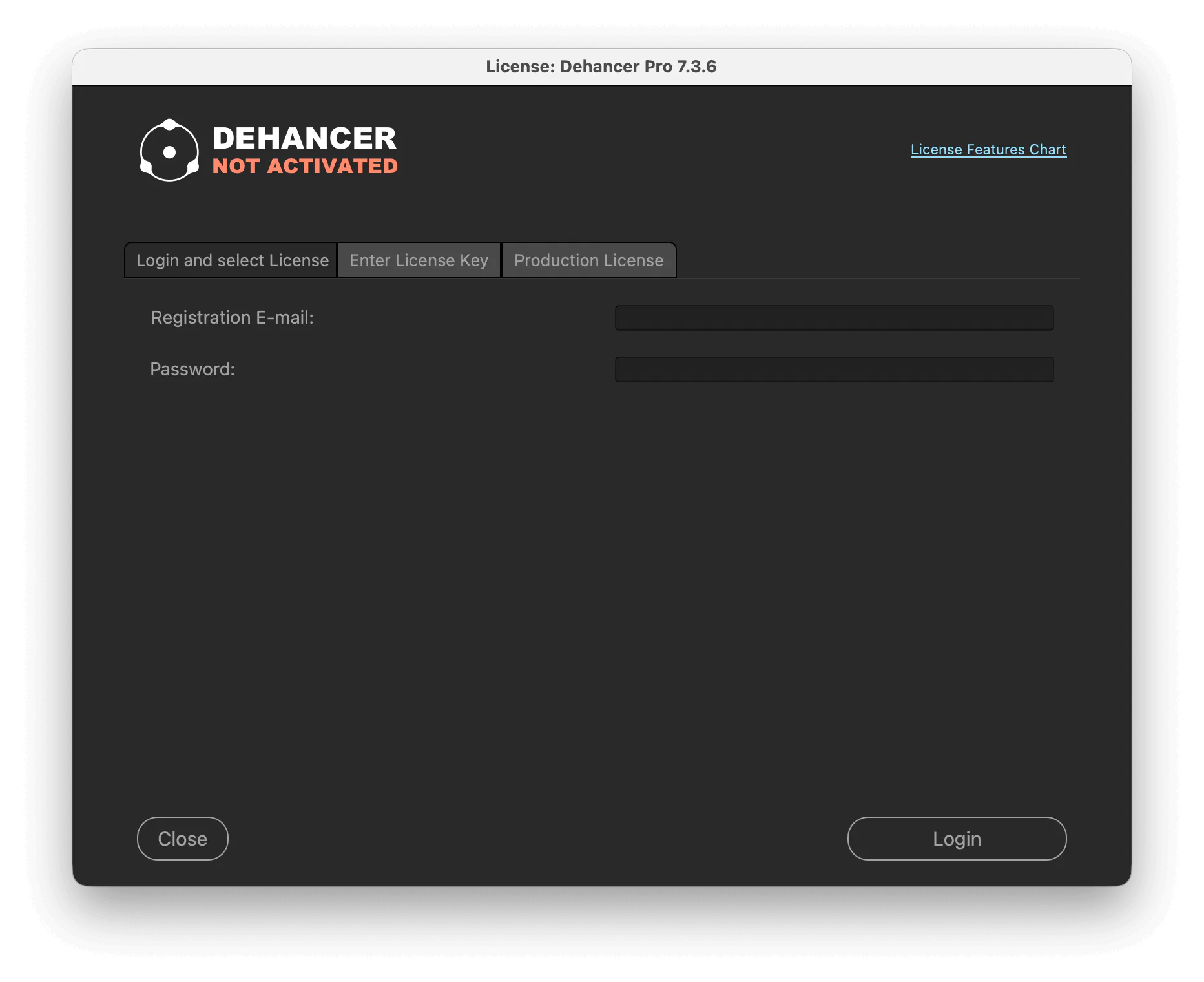
If you don’t have a Subscription or a Lifetime, press [Pricing] to choose a plan on the website.
Film Profiles
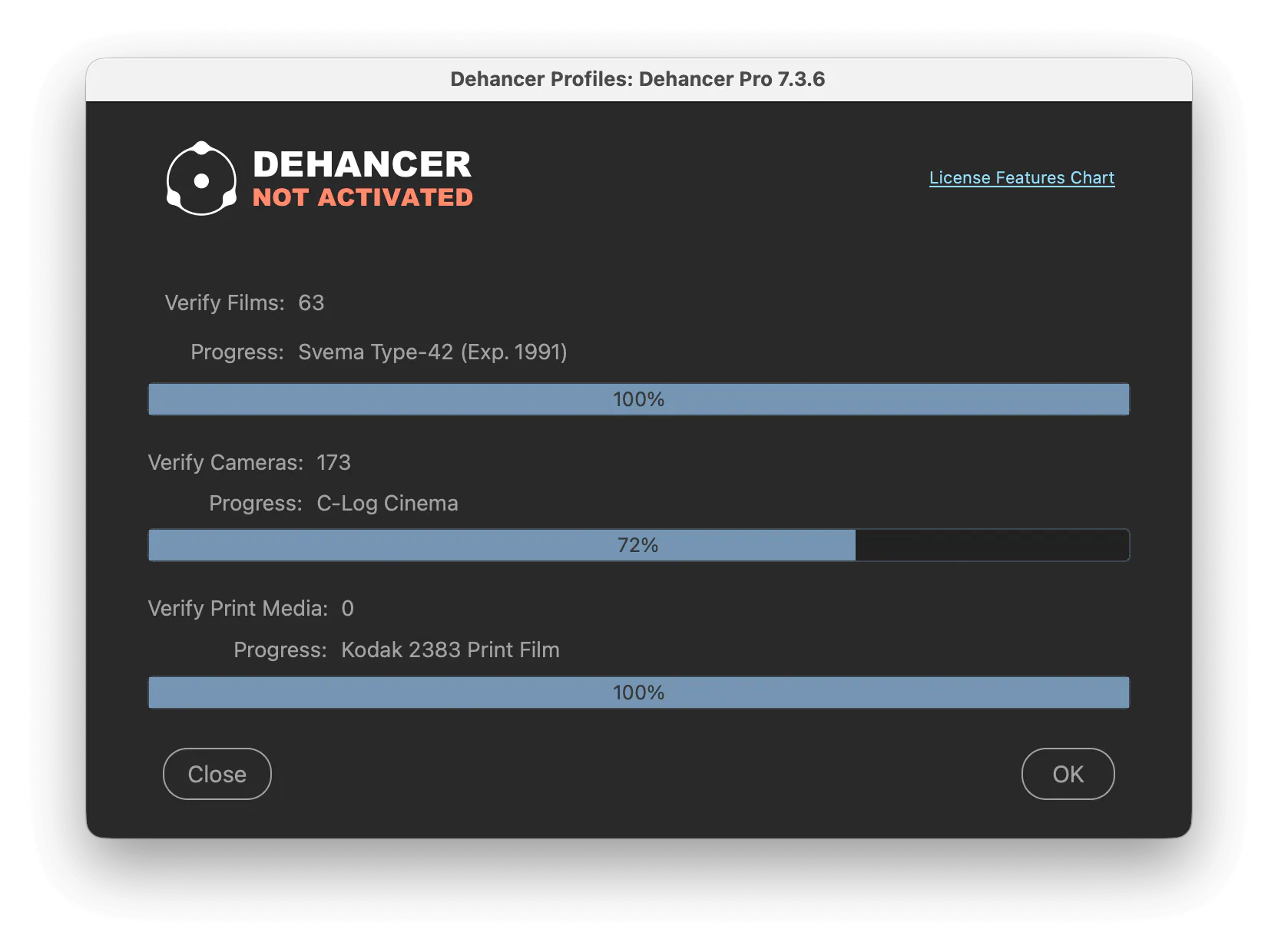
Hit the [Update Profiles] button to check and update film profiles at any time. The Dehancer Profiles widget will open and the profiles will be automatically downloaded and installed.
Processing
If your system has multiple GPUs, select the best-performing one.
[Prefer shared memory instead of GPU RAM]
This option may result in better performance with some specific configurations.
[Default RAW Processor]
You can set the Default RAW Processor from the list of frameworks available for your operating system. This setting does not affect photos that have already been edited.
[Prefer 8-bit processing for RAW and high-bit-depth images]
You can slightly improve the performance by forcing 8-bit input. processing for 16-bit sources, with virtually no visible quality loss in most cases.
Maintenance
If you experience unexpected behaviour, enable the [Dehancer Log] checkbox, restart Dehancer, and wait for the issue to appear.
Then go to Settings → Maintenance and press [Open Log Folder] to locate the log file and attach it to your bug report.
Software Update
Here you can find your current version and available updates, including Beta (if checked on). Also, you can visit the Downloads section on our website.
Interface
We designed Dehancer to be simple and intuitive, but you still have a few options to configure in your workspace.
Panels Management
Show or hide panels using the buttons on the toolbar or with the keyboard shortcuts for your OS.
Press [F] to show or hide all panels and maximise the preview or the thumbnails area (works in Browser and Editor).
Collapse or expand any panel by clicking its header.
The ‘View’ Menu
- [Refresh] or [Cmd/Ctrl + R] to re-scan connected drives and rebuild the folder tree.
- [Square Grid] shows square previews.
- [Proportional Grid] shows thumbnails in their original proportions.
- [Show Thumbnail Info] shows the image information in thumbnails.
- [Show / Hide Status Bar] enables or disables the status bar with file information and film profile (available in Browser and Editor).
- [Show Tooltips] displays short hints for most interface elements.
'Help' Menu
In this menu, you will find helpful information about using the app: Keyboard Shortcuts table, Quick Guide web manual, and Video Tutorial.
Browser
Navigating folders
Dehancer starts with Browser.
Pick any folder in the tree to preview its contents.
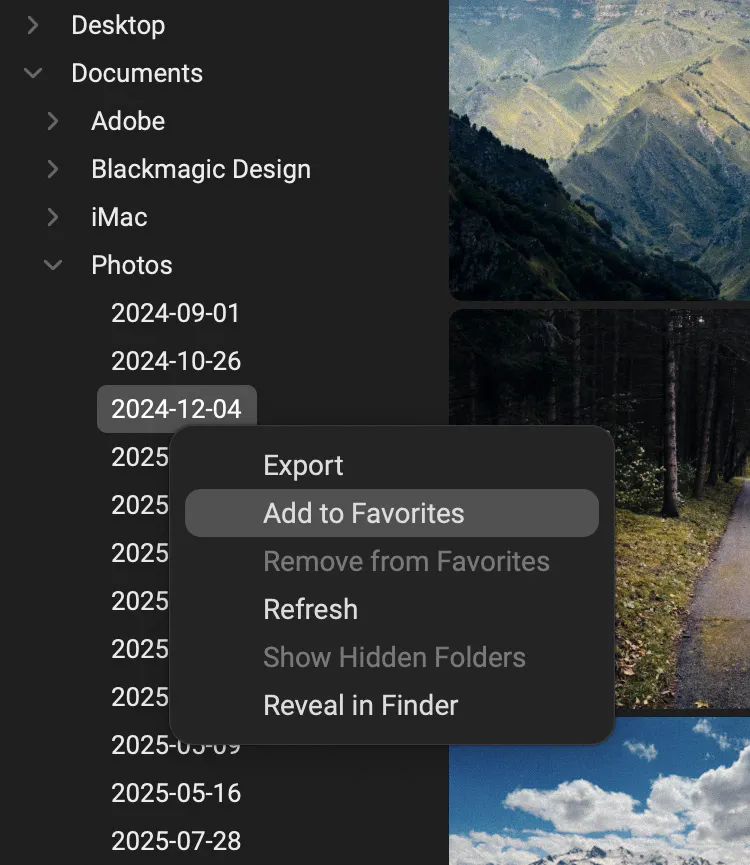
Add frequently visited folders to Favorites with the [Heart] button in the panel header, or with the context menu.
Click the [Favorites] tab to show your favorite folders.
Sorting and Filters
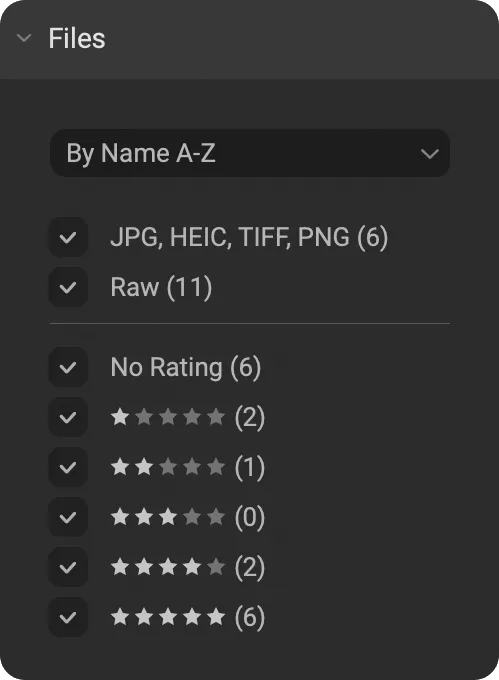
Sort thumbnails by Name, Date, or Rating, ascending or descending.
Dehancer supports JPEG, HEIC (on macOS), TIFF, PNG, and RAW photos.
You can filter images by file type to differentiate RAW from other formats.
Rate photos with keys [1] … [5], click the stars on a thumbnail, or use thumbnail context menu.
Double-click the stars to clear the rating.
Filter images by Rating (multiple selection is possible).
Selecting Photos
Click photo thumbnail to select it.
[Cmd/Ctrl + Click] to add photos to the selection.
Click the first photo, then [Shift + Click] the last one to select a range.
Image Context Menu
Right-Click selected photos to open the context menu where you can access many useful image actions like Edit, Copy/Paste Edits, Export, Add to Project, Set Rating, etc.
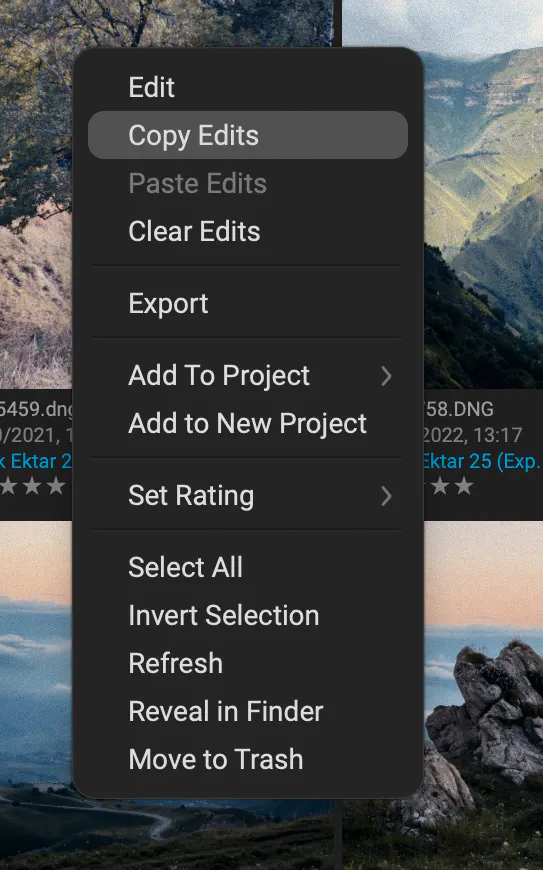
Image Preview
Press [Space] to preview a photo in fullscreen.
Zoom In and Out with [+] or [-] keys, by double clicking the image or with the mouse wheel.
Press [0] to fit image to the screen.
Hover to display filename and rating.
Set a rating with [1]…[5] keys or click the stars.
Use the arrow keys [←] [→] [↑] [↓] to navigate between images in the current folder or project.
Browser Toolbar

Click this button to Open Settings, or press [S].

Export selected photos. In the Export Settings dialogue you will be able to select destination folder and file format.

Enable/Disable Dehancer film emulation on the thumbnails and on the fullscreen preview.
Projects
Use Projects to organize your photos and sessions.
Think of a project as a virtual folder where you can place selected photos while keeping the source files untouched.
This saves disk space and allows you to create virtual duplicates. A single photo can belong to multiple projects – and each instance will have its own independent edits.
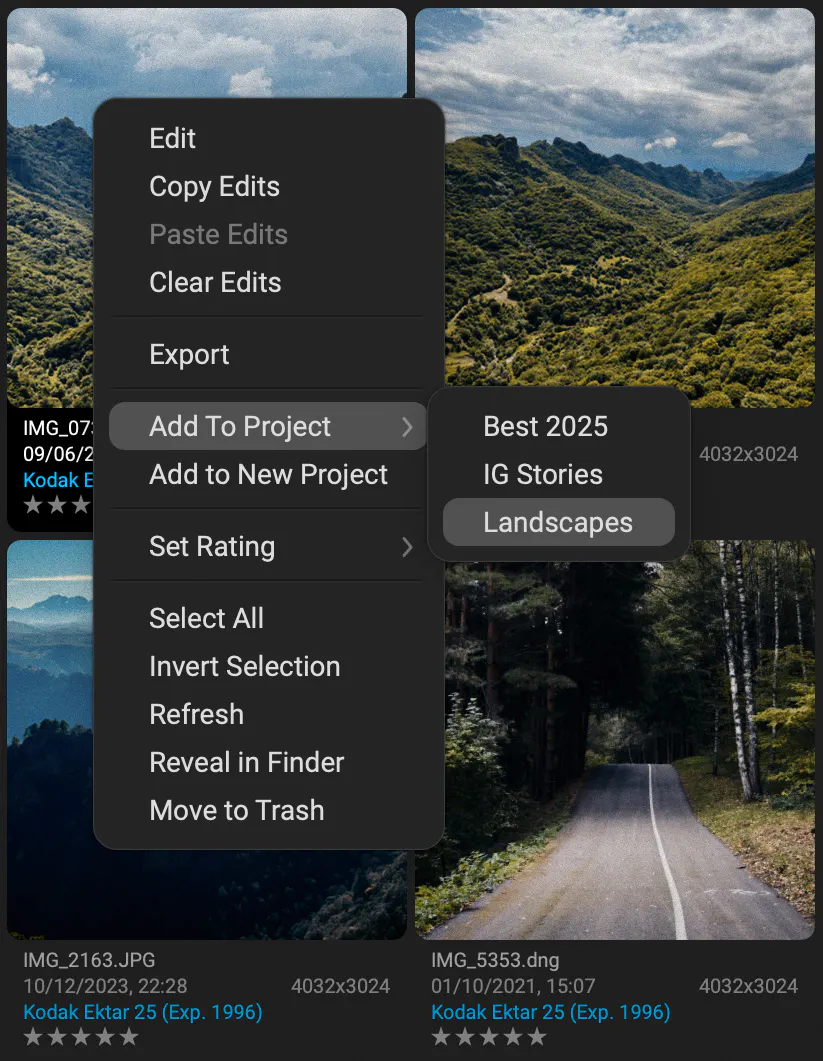
Add photos to the project
Add selected photos to the existing or a new project using the thumbnail context menu in Browser.
Relink source
If you delete a source file in Browser or outside of Dehancer, this photo becomes unavailable in projects.
You can use the [Relink] command from the thumbnail context menu.
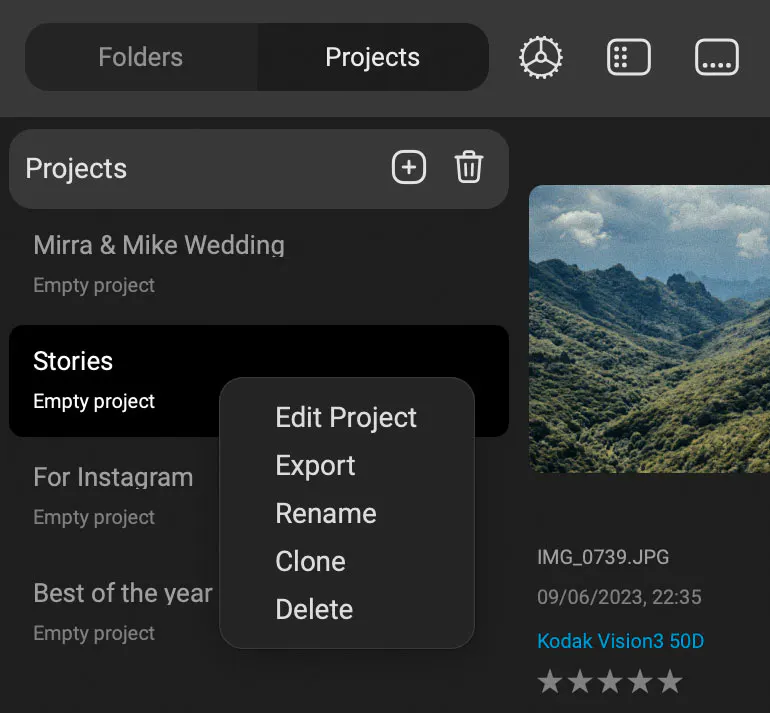
Manage projects
Open the [Projects tab] to view, edit and manage your projects.
Use the project context menu to Edit, Export, Rename, Clone or Delete selected project.
Sorting and Filters
Sort thumbnails by Name, Date, or Rating, ascending or descending.
Dehancer supports JPEG, RAW, TIFF, HEIC (on macOS), and PNG.
You can filter images by file type to differentiate RAW from other formats.
Rate photos with keys [1] … [5], click the stars on a thumbnail, or use thumbnail context menu.
Double-click the stars to clearthe rating.
Filter images by Rating (multiple selection is possible).
Editor
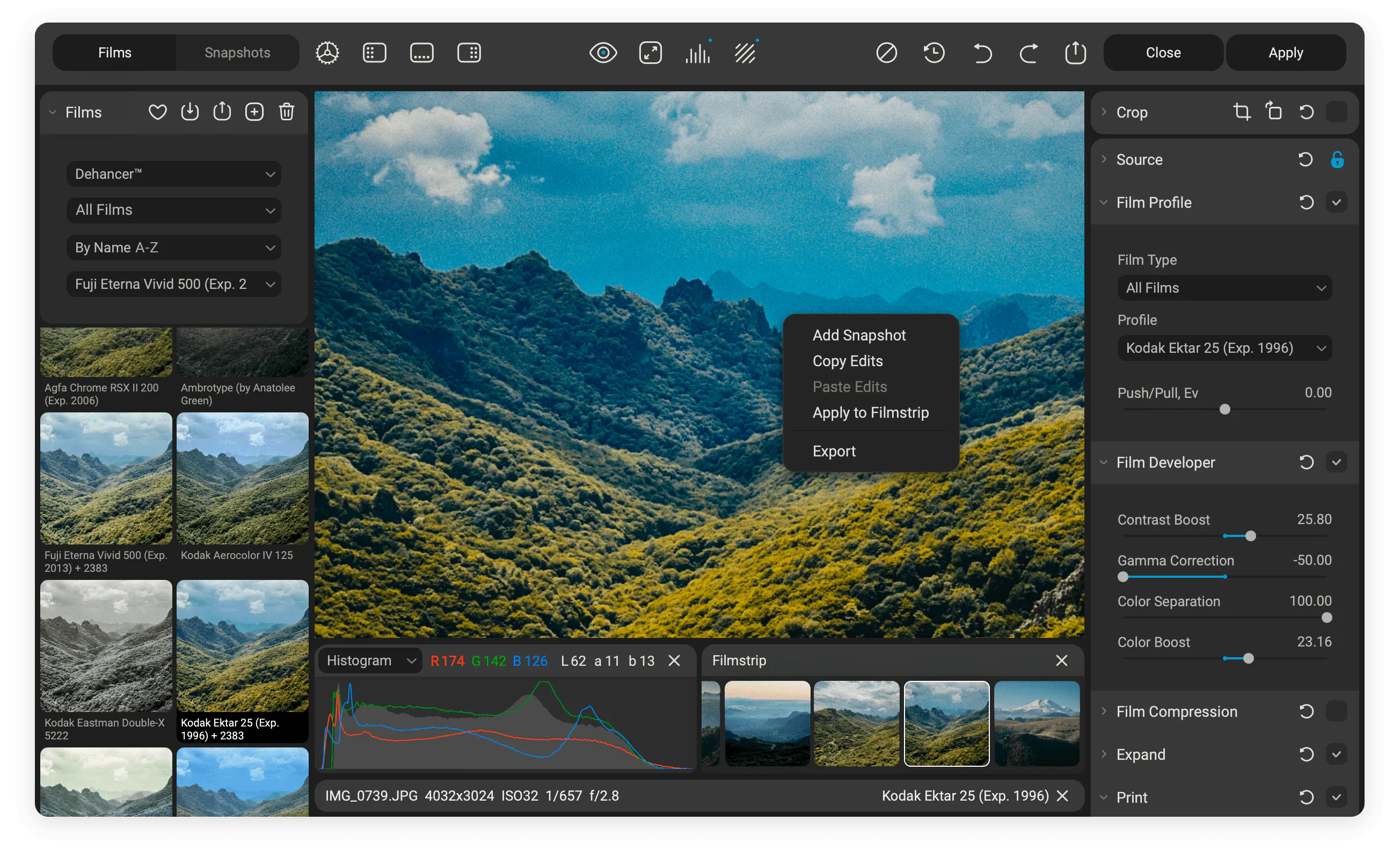
Non-Destructive Editing
Dehancer features non-destructive editing. The source file remains untouched, and all edits are stored in the application library when you click [Apply] or press [Enter] in Editor.
This allows for virtual duplicates – one photo can belong to multiple projects, and each instance will have its own independent edits.
Opening Photos
You don’t need to import photos in Dehancer and blow-up cache files. Just navigate folders in the Browser or open files from Finder file menu.
To open single photo, press [Enter] or double-click the image thumbnail.
To open selected images, click [Edit] in the image context menu.
To load the entire project in Editor, select [Edit] from the project context menu.
To open a photo from your OS, drag a file onto the application icon, or use the [Open with…] command from the system context menu.
Filmstrip

Click the button to Show/Hide the Filmstrip.
Filmstrip allows you to navigate multiple photos with arrows [←] [→] or with horizontal scroll.
In the context menu you can Add Snapshots, Copy/Paste Edits, Apply to Filmstrip and Export.
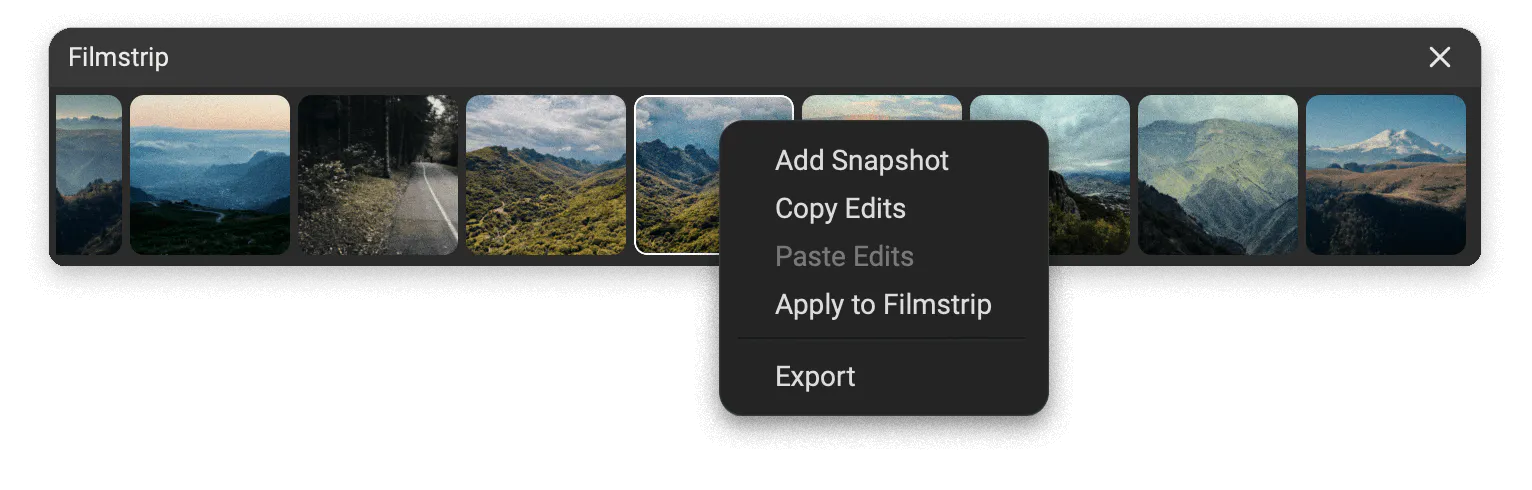
Image Preview
Toggle Before/After image preview.
Zoom image to 100% pixel size.

Zoom image to fit the preview area.
Inspector: Histogram, Waveform and Clipping

[Inspector] button enables the Histogram or Waveform visualisation for RGB and Luminosity channels.

The [Clipping indication], shows underexposed shadows and overexposed highlights for 0-5 and 250-255 range.
Inspector panel displays the RGB and CIE Lab color values
around the cursor, averaged over a small area.
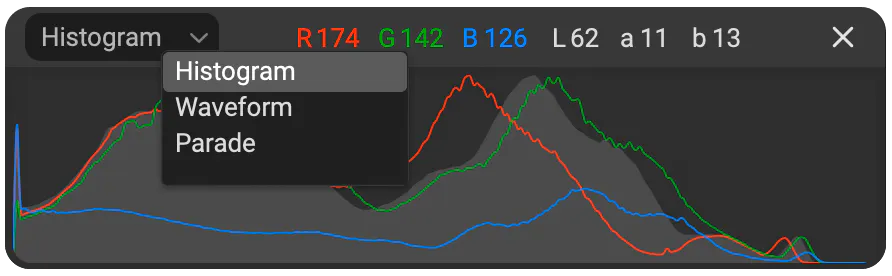
There are 3 inspector modes available in the dropdown menu:
- Histogram shows the amount of pixels with each luminance value, from the shadows to the highlights.
- Waveform shows the equivalent luminance values across the frame, from left to right.
- Parade shows the waveform preview for individual RGB channels.
Undo, Redo, Reset, Revert
The editing history is stored for the current editing session. Once the Editor is closed, the last image state is saved.

Reset all settings and disable all tools, including film and print profiles.

Revert to the initial settings from the start of the current editing session.

Undo last edit.

Redo last edit.
Film Presets
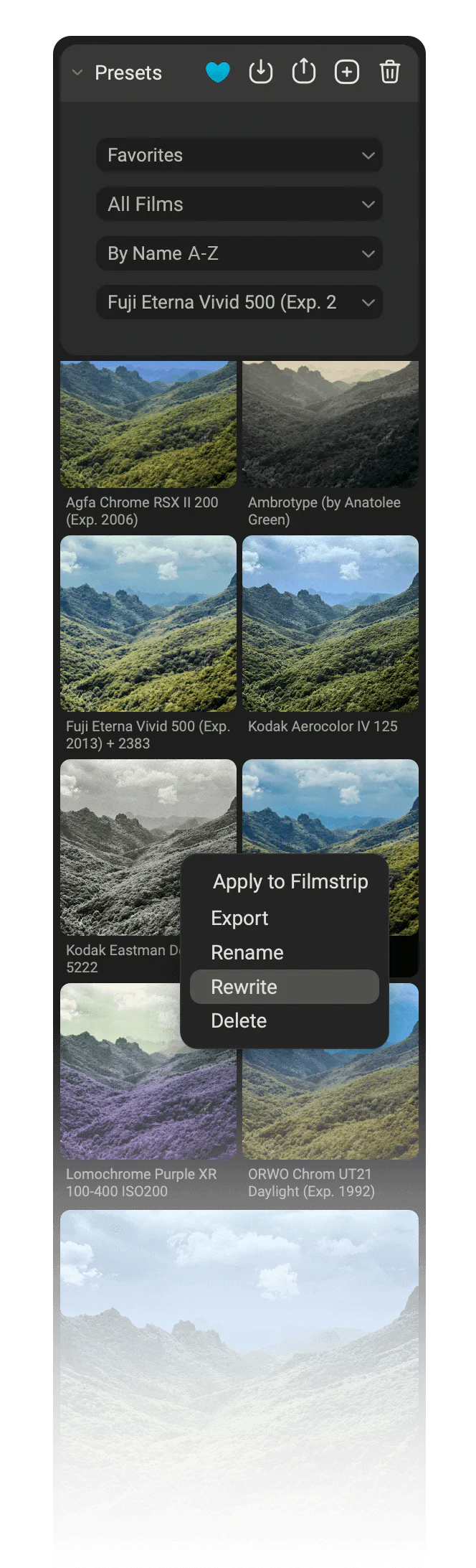
There are dozens of film presets bundled with Dehancer, and you can make your own.
Presets are a more general concept than just film profiles, including print media, effects and adjustments.
You can filter films by type, sort by name or by date.
Explore preset groups:
- Dehancer™
- Favourites
- My Presets
- Imported
Create, Import, Export, Add to Favourites and Delete presets with the panel buttons.
In the context menu you will find more actions, like Apply to Filmstrip, Rename, or Rewrite with current edits.
For bigger previews, select [Large thumbnails] in the [View] menu.
Snapshots
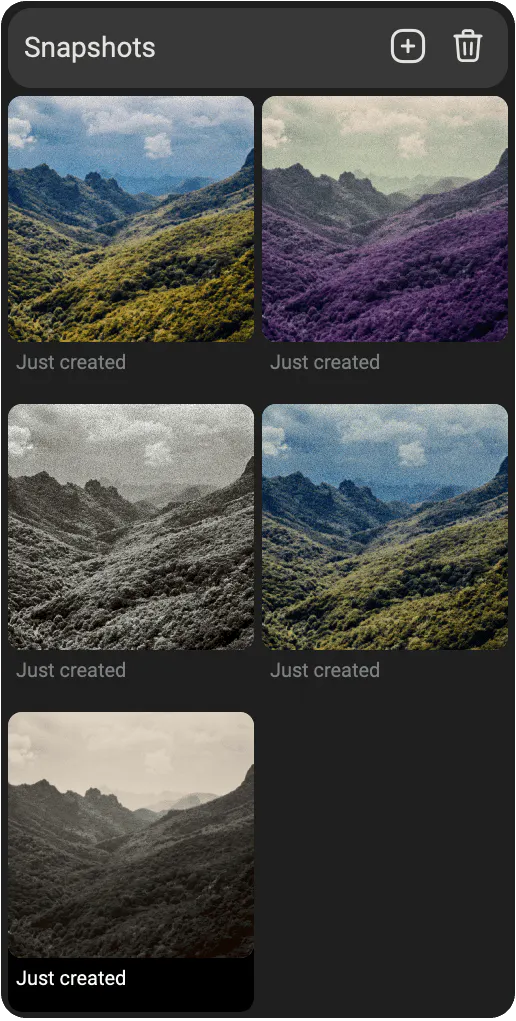
Every photo can have the Snapshots – grading versions, ‘local presets’ for this particular image.
For example, if you want to try different films, just save current settings as a Snapshot, and create additional snapshots at the key points when major adjustments are made.
Every snapshot contains the complete look, including RAW Settings.
To create new snapshot, click the [+] button on the panel, use the image context menu, or press [S].
Click any snapshot to Apply Edits to the current photo.
Tools and Adjustments
Each panel section contains controls for a specific tool or feature set. You can collapse or expand any panel by clicking its name.
Common controls are located in the panel header:

Use the checkbox to enable or disable any tool. There is no checkbox on the Source panel, as source corrections are always applied.

The [Revert] button resets all tool parameters to their default values.

The [Lock] button in the Crop, Source, Film Damage and Overscan tools preserves corrections when switching presets or snapshots.

Double-click any slider to Reset it to its default value.
Tool Profiles
Several effects have a drop-down list of Tool Profiles making them much easier to use. Tool Profiles are sets of pre-configured parameters designed to recreate the typical look of different film formats.
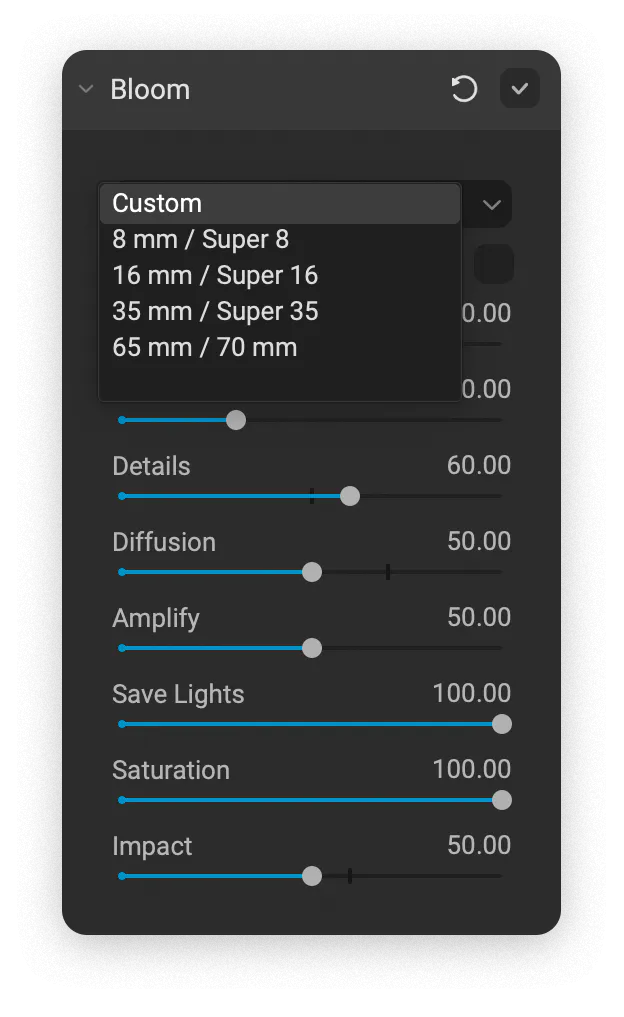
To adjust any tool profile, first select the one that fits best, then switch to Custom mode.
All parameters will become available, and their values will match the last selected profile.
More detailed information on Tool Profiles:
💡 Related article: Dehancer Tool Profiles
Copy/Paste Edits
You can Copy/Paste Edits in the image context menu (in Browser, Filmstrip and the Preview) or with the shortcuts:
- Copy Edits – [Shift + Cmd/Ctrl + C]
- Paste Edits – [Shift + Cmd/Ctrl + V]
The image state recalls all parameters and adjustments, including RAW settings.
Export
Press the [Export] button on the toolbar to export selected images.
In Editor, you can Export Current Image or Export all Filmstrip Images. Also you can Export the entire project via the project context menu.
In the Export Settings dialogue:
1. Check the files summary.
2. Select destination folder. If a file with the same name exists in the target folder, a unique filename is generated automatically to keep both files.
3. Choose file format and quality.
JPEG 100% is a virtually lossless setting that is sufficient for any application unless additional editing is planned.
TIFF is a truly lossless format used for archival storage, when further editing may be required. Usually, 16-bit is unnecessary, however, we provide this option for critical work. When exporting to 8 bits, lossless LZW compression is applied automatically.
- Use ‘Preserve metadata’ and ‘Preserve Location’ options to keep or wipe sensitive data in exported photos.
- ‘Add processing info’ option allows to add custom XMP metadata: film profile, print profile and software version.
- Click [Start Processing] to render your batch.
Exported Image Size
While keeping the interface responsive and preview optimised, Dehancer generates full size images on export.
With very large photos, export may be slow, actual preformance depends on your GPU and RAW.
Photo Editing Pipeline
1. Preview, rate, sort and filter photos in Browser.
2. Select one or multiple photos.
3. You can open selected photos in Editor or Add to the Project.
4. If you prefer shooting in RAW, you can adjust RAW Settings.
5. The original image may still have some deviations, which can be adjusted with the Source Corrections tool.
6. Use the Crop tool to frame and align your shot.
7. Select your favourite look in Film Presets. You can switch between the presets with [↑] and [↓] arrows.
8. The Push/Pull setting in the x tool allows to further adjust the profile appearance depending on film exposure.
9. You can change the Print Medium, adjust Exposure, Contrast, and other Print settings.
10. Enable the Analogue Range Limiter to get the real contrast of print media and get a softer image with more shadow and highlight detail.
11. Use the Expand tool to set the black and white points.
12. CMY Color Head is a perfect tool for creative adjustments of print white balance and split toning.
13. Factory presets contain pre-adjusted film effects. Some effects may not be enabled by default, like Overscan and Film Damage.
14. Use Snapshots to store and manage multiple grading versions.
15. Click [Apply] to save the actual state of all photos loaded in Editor.
16. If you click [Close] or [Esc], you will be prompted to save or discard the last edits.
17. Click the Export button to export all photos loaded in Editor or selected in Browser/Projects.
RAW Setings
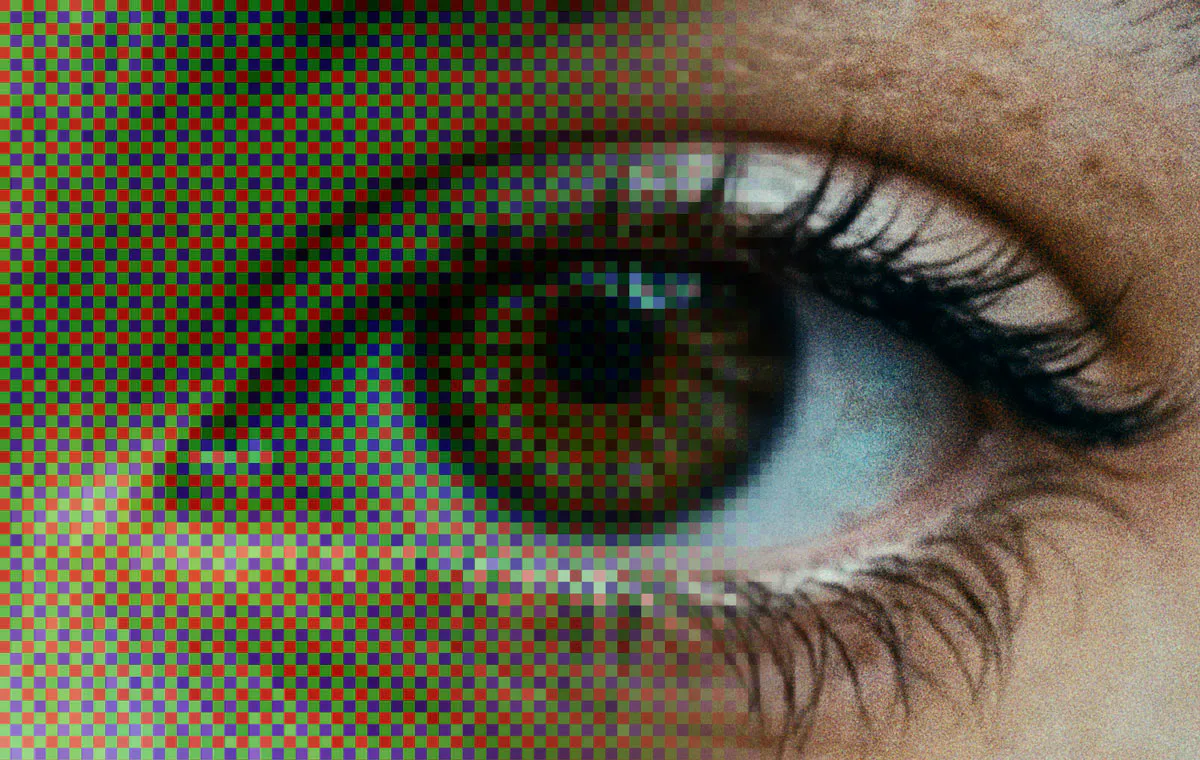
Standardisation of cameras is a topic of debate.
While camera JPEG has its own style, RAW is considered neutral and ‘unprocessed’, but in modern cameras it also varies in color, contrast, latitude, and post-processing, like noise reduction, tone mapping, HDR, local contrast, lens correction, etc.
RAW files may appear weird or underexposed when compared to the in-camera JPEG. Each software interprets the files in its own way, and not always as the manufacturer intended. In addition, the marketed ISO may not match the actual sensitivity. At the same time, photographers often intentionally underexpose to preserve details in the highlights. In such cases, manual correction is required.
In Dehancer RAW support is under active development. We aim to give you a neutral look and sufficient headroom for processing, while allowing to select from multiple frameworks and to adjust some key parameters.
RAW Processor
Dehancer relies on multiple RAW frameworks for better camera support and gives you the flexibility to choose the best interpretation.
You can select from the list of RAW processors available for your operating system. Both the image rendering and adjustments set will be different. For example, Apple provides a more vibrant image by default, while LibRaw exhibits technical precision, sometimes revealing unpleasant truth about your files.
We don’t provide any controls over the demosaic algorithm. The frameworks are tuned for a balanced image, without visible artifacts like noise reduction, sharpening or moire. Notice that in Dehancer the image structure is defined mostly by the Film Grain.
You can select the default framework for newly opened files in the Application Settings → Experimental
RAW Settings are stored with each photo and included in snapshots, but they are not included in presets.
The set of RAW settings depends on the selected RAW processor. We have included the most significant ones in the application interface. Below is a complete list of adjustments, which are available in various frameworks.
Pre-Gain (LibRaw)
Digitally pre-amplifies the signal to compensate for underexposure. In many cases, Pre-Gain performs better than Exposure Compensation in Source, since it works with unprocessed sensor data.
Preserve Highlights (LibRaw)
Some photos require extra headroom. This adjustment preserves highlight detail and provides better source for film emulation.
Auto Exposure (LibRaw)
This option is enabled by default and lets the framework set the exposure automatically. Disable to adjust the exposure manually.
Exposure (Apple, LibRaw)
In different frameworks, exposure in RAW can be implemented in different ways and produce different results. Use this parameter to correct the most severe deviations.
White Balance (Apple, LibRaw)
Select [As Shot] when the on stage white balance looks acceptable, then fine-tune the look using Color Head.
For serious deviations, try [Auto] or [Custom].
In Custom mode the [Temperature] and [Tint] controls are enabled.
Shadow Bias (Apple)
Use this adjustment to control shadow detail.
Boost (Apple)
The contrast curve is applied to the photo by default. Reduce it to obtain a softer image and simplify further processing.
Local Contrast (Apple)
Local contrast reveals the texture of the image. Unlike Sharpness, it acts with a larger radius and affects the overall clarity.
Local Tone Map (Apple – ProRAW DNG)
This is a comprehensive post-processing parameter that affects the distribution of contrast between local areas of the image. By reducing this value, you can obtain a more ‘honest’ but more difficult to process image.
Sharpness (Apple)
Controls the amount of unsharp masking effect applied to the image.
RAW Workflow Tips
RAW Settings are not included in the presets. When you switch presets, it’s convenient to keep RAW adjustments with the image, providing a normalised source.
Use the Snapshots to store the complete editing state, including RAW Settings.
If your camera is not supported
If your RAW format is not supported yet, or for some reason you are not satisfied with the results, there are workarounds:
1. Try alternative RAW Processors
In Dehancer you can select from the list of RAW Processors available for your operating system.
2. Convert to DNG
Convert unsupported photos to DNG using the Adobe DNG Converter. This preserves the source data and makes it readable for Dehancer.
3. Use third-party RAW software
You can pre-process your images in any other RAW software at your taste. Normalise the look, use the normal contrast curve, avoid clipping, disable sharpening and export as sRGB, TIFF 16 bit.
Apple ProRAW DNG is not a traditional RAW with a Bayer mosaic. Here, exposure and other adjustments are applied as a post-correction to the processed bitmap image. However, it delivers predictable results, and technically can be better than the Source correction.
Crop
The Crop panel is located below the RAW Settings, as cropping is applied after RAW processing.
Crop adjustments are saved with photos in the library, but are not included in presets or snapshots, so you can change film looks without affecting the crop.
Crop Toolbar

Press the [Crop Overlay] button to show / hide the crop frame interface.
Move the frame handles to adjust the crop. Hold [Shift] key to crop from center. Drag outside the frame to rotate the canvas.
Click the [Crop Overlay] button again, or press [Enter] to apply crop.
When the Crop overlay is active, Dehancer emulation is temporarily disabled.

[Rotate 90°] button rotates the photo clockwise in 90° increments.

[Reset] button resets the crop to its original state.

[On/Off] checkbox enables or disables the crop tool.
Ratio
Choose a ratio from the list or enter a custom values.
Use the [Swap] button to switch between Portrait and Landscape orientation.
Perspective Correction
Use the Perspective H and Perspective V sliders to correct horizontal and vertical perspective.
Crop Context Menu
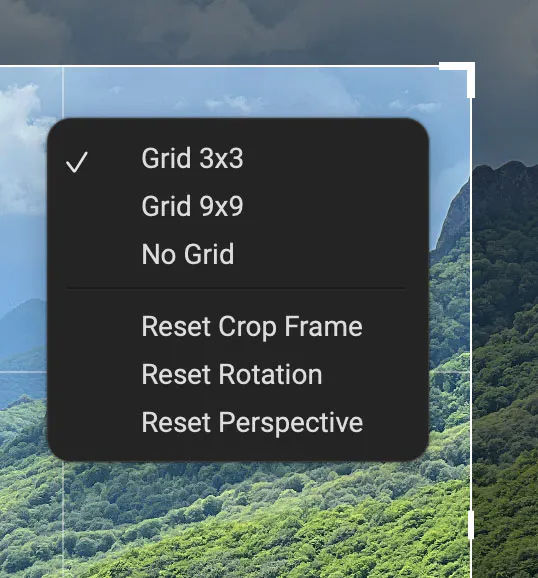
When the crop overlay is active, some extra options are available in the preview area context menu.
Select the 3x3 or 9x9 grid, or disable the grid overlay.
Reset the crop frame, rotation, or perspective correction individually without affecting the other parameters.
Source
The Source settings and corrections are designed to fix technical issues of the image (no creative adjustments here).
Color Profile
Dehancer currently supports source images in the following color spaces:
- sRGB IEC61966-2.1
- AdobeRGB (1998)
- ProPhoto RGB
- Display P3
- Beta RGB
We try to extract the embedded color profile information from the image and automatically select the detected color space. If it fails to for some reason, the default sRGB IEC61966-2.1 profile is applied, or you can set it manually.
Exposure Comp.
This setting can be used to compensate for the exposure errors of the source media. This is a technical correction that applies before film and print profile.
Print Exposure, on the other hand, is a creative tool, where the outcome depends on Print Media selection, Exposure and Tonal Contrast settings.
Temperature Comp., Tint Comp.
Use these adjustments to compensate for strong deviations of the white balance and prefer CMY Color Head for creative adjustments.
Defringe
Defringe helps reduce chromatic aberrations along high-contrast edges that may interfere with Dehancer effects such as Halation and Bloom.
In some cases Defringe may introduce visible halos around the edges. Lowering the Defringe Amount and Radius helps to deal with this issue.
Source Lock
Normally, applying a film preset or image snapshot replaces all adjustments, including the source correction.
But sometimes it’s convenient to preserve these adjustments when switching presets or snapshots, so you don’t have to redo them each time.

Click the [Lock] button to keep source corrections intact when changing presets or snapshots.
Film Profiles
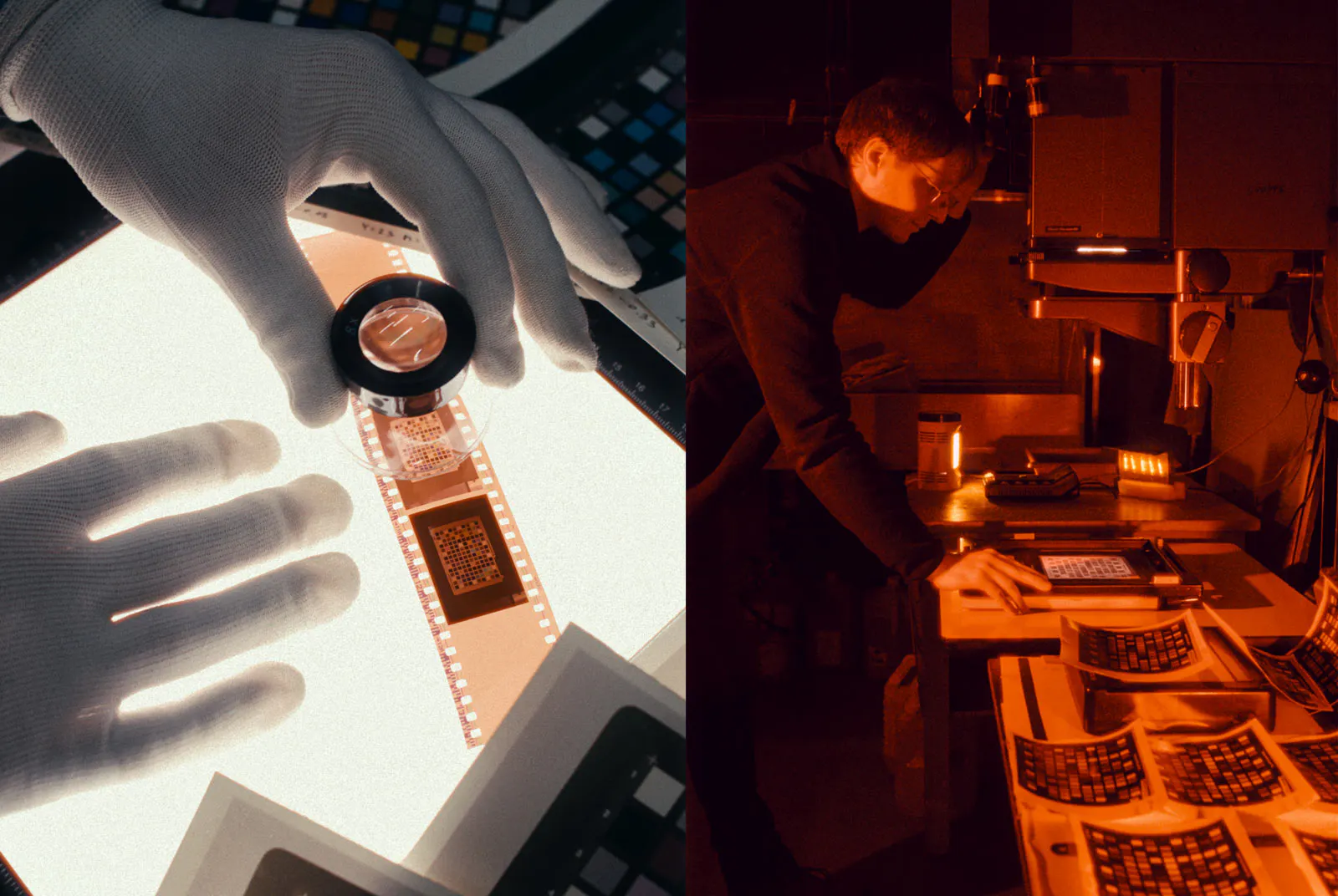
Film is the heart and soul of Dehancer.
Each film is carefully shot, developed, optically printed, and precisely sampled with all its unique characteristics. Simply scroll through the list and try different films. And don’t forget to adjust Expand and Print if needed – films vary in contrast and tonal range.
💡 Related articles:
Push/Pull (Ev)
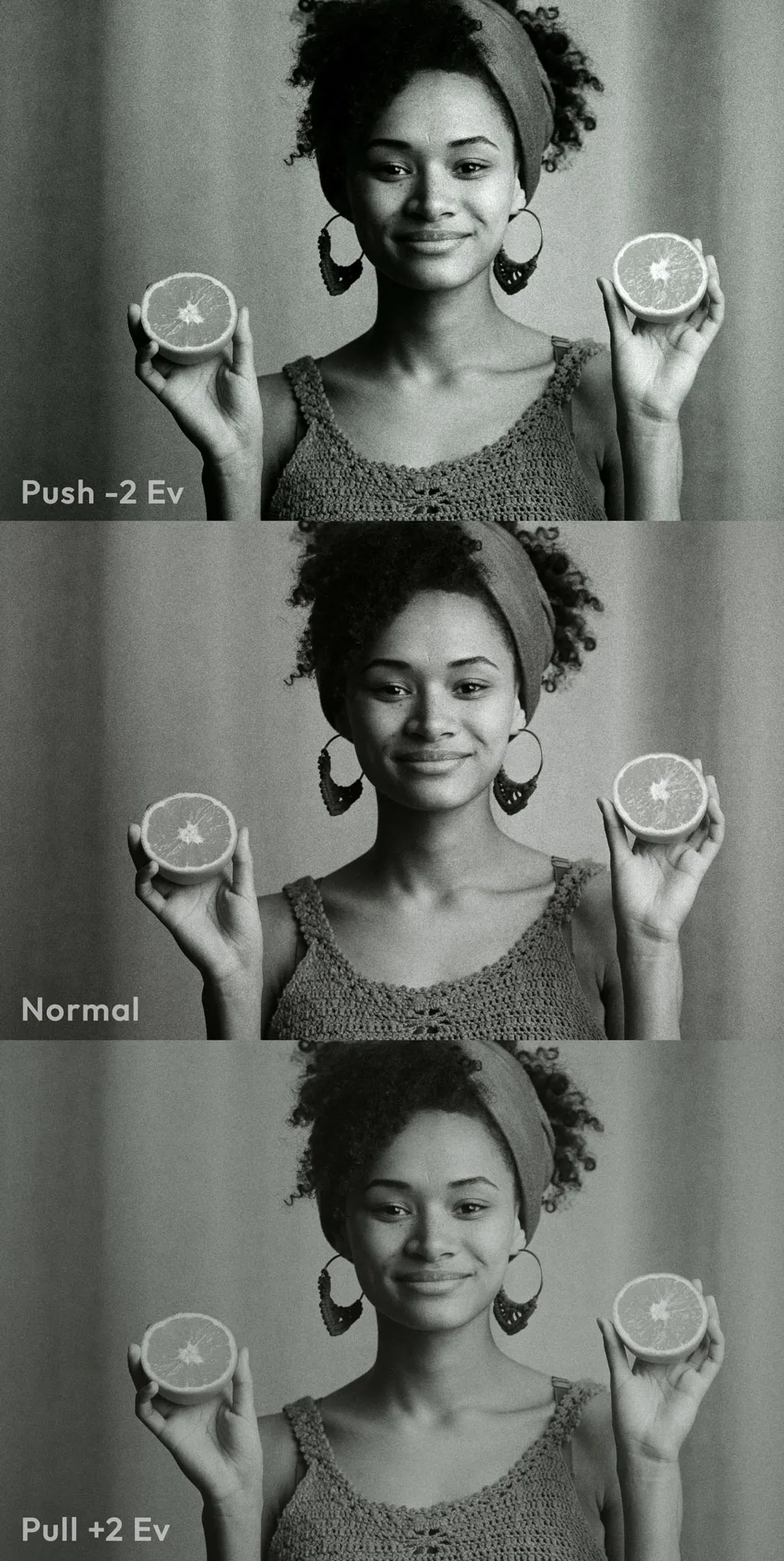
Svema Type-42 (Exp. 1991) BW negative film profile, printed on Bromprotrait BW paper
Various films respond differently depending on how much light they receive.
Underexposed or overexposed film requires Push/Pull processing – the development and print corrections.
Each film profile is built using 3 separate film exposures, printed and sampled individually.
On negative films, Push/Pull affects color and contrast.
On positive films, Push/Pull directly affects film exposure.
Film Color Temperature and Source White Balance
When creating film profiles, we light the color target with the reference light source with the color temperature specified by the film manufacturer. Daylight films are shot under 5500K, while Tungsten emulsions require 3200K incandescent bulbs. This ensures neutral color reproduction at capture.
During optical printing, white balance is further refined using color filters in the enlarger, bringing neutrals precisely to the reference point.
As a result, all film profiles are technically designed for source images with a neutral white balance.
If needed, you can fine-tune the source using Temperature Comp. and Tint Comp. in the Source tool.
Tip 1: We optically print negative B&W films on the famous Slavich Bromportrait paper known for its noble warm tone. For pure black and white, you may set the Saturation = 0 in Print. Also try CMY Color Head to adjust tint and split-toning at your taste.
Tip 2: There is no dedicated Opacity control for Film Profile by technical reasons but mostly by design – one cannot shoot ‘halfway’ on film.
Film Developer
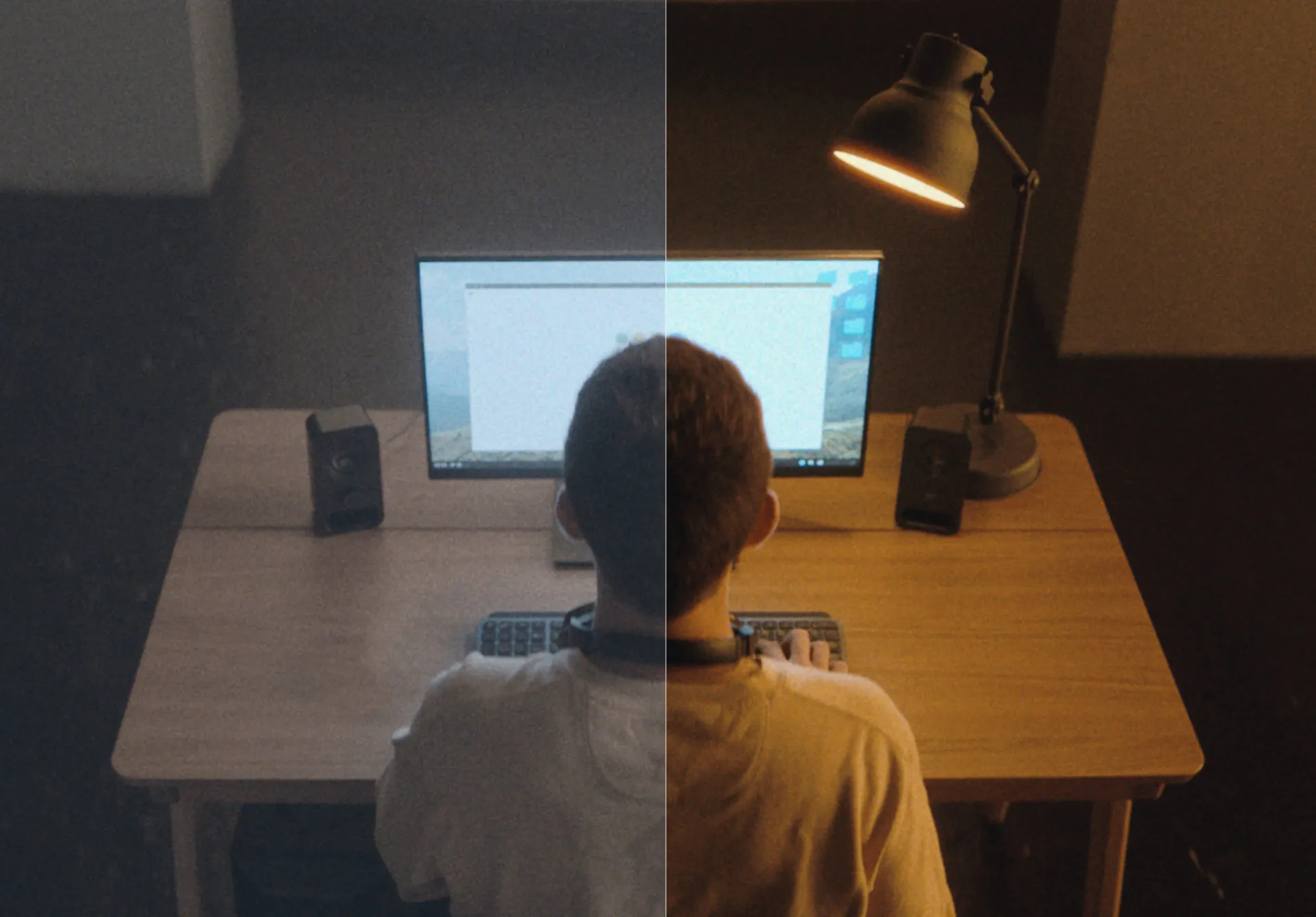
The conventional analogue approach makes it possible to process film by individually configuring the formula of the developer solution and the development process.
The Film Developer tool lets you create your own development recipe and solve practical tasks:
1. Grade photos with undefined gamma, contrast, or color profile (images from unknown sources).
2. Compensate excessive or insufficient source contrast to make it more flexible for further processing.
3. Color Boost increases overall saturation in the analogue way, with natural color relations.
💡 Related article:
Contrast Boost
This parameter controls the developer contrast. In analogue processes, development contrast is determined by developer temperature and concentration. In Dehancer this parameter can take both positive values (contrast increases) and negative values (contrast decreases).
Gamma Correction
In film processing gamma correction controls the contrast ratio of a negative, in relation to the exposure time. This parameter determines how much the midtones are shifted towards shadows or highlights. Gamma correction is possible with any Contrast Boost value other than zero.
Color Separation
The color separation of the negative film is determined by the color filters in the emulsion layers, the sensitisation of each layer and their order. In Dehancer you can control the ‘chemical component’ of the developer, which affects the sensitisation of the emulsion layers.
When Color Separation value is reduced, saturation of the most intense colors is reduced first, while medium and low saturation colors remain almost unaffected.
By default, the Color Separation setting has a maximum value of +100. It affects the image at any Contrast Boost value other than zero.
Color Boost
Some color development processes allow saturation to be controlled by the properties of the dyes that are introduced into the emulsion at the development stage. In Dehancer, this feature is implemented in the Color Boost parameter, which increases or decreases the overall saturation of the image (not only the most saturated colors, as with Color Separation). This type of color enhancement is gentle and does not lead to clipping, i.e. all colors remain inside the color gamut.
Film Compression
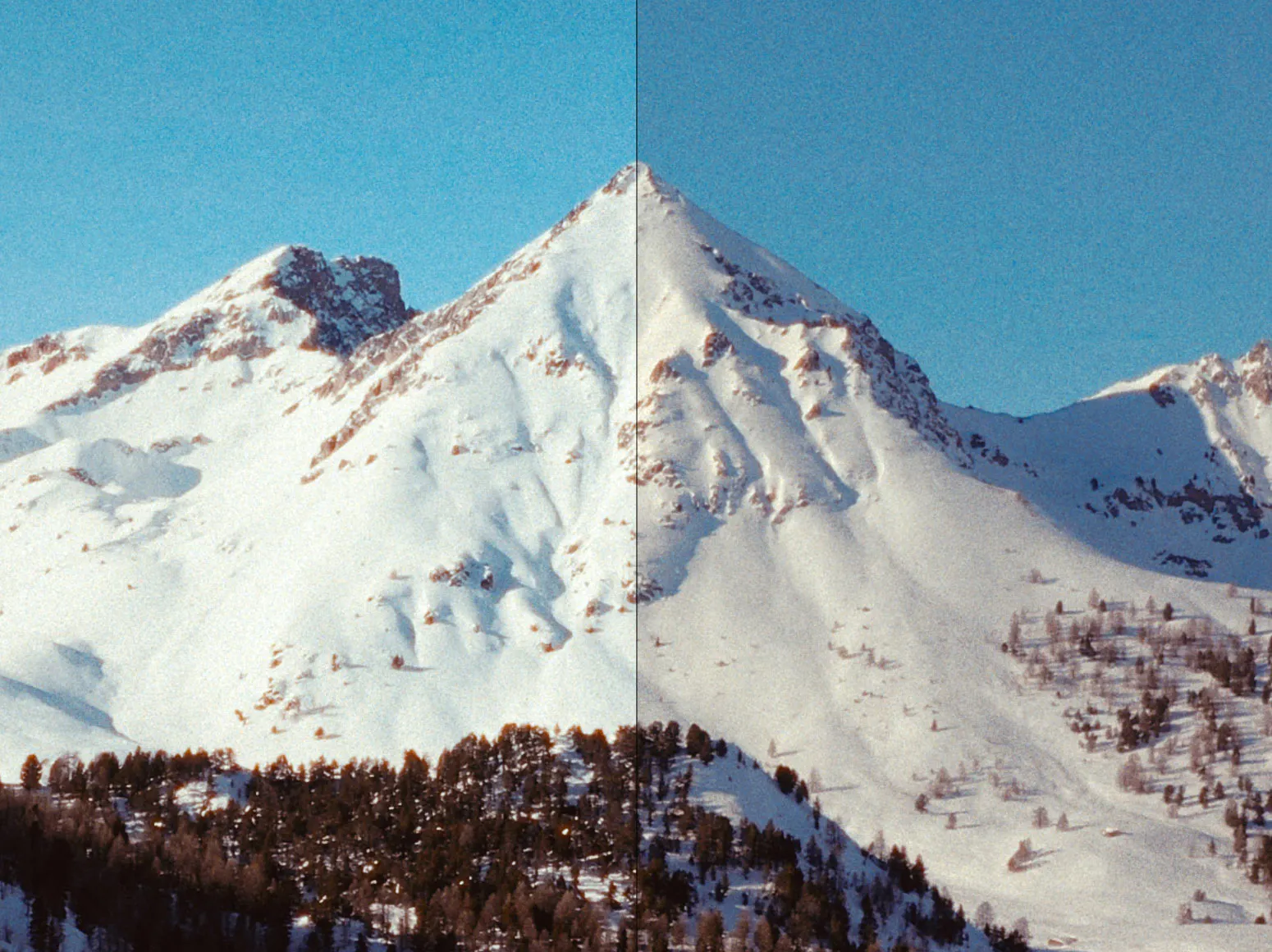
Usually on a negative film, clipping in the highlights occurs much later than on a digital camera.
To emulate the film-like compressed tonal range, we invented the Film Compression tool. It lets you fine-tune the redistribution of the highlights. The resulting image looks more analogue and becomes more flexible for further manipulation with exposure, contrast, film/print profiles, etc.
💡 Related article:
Impact
This parameter determines the degree of compression.
The higher the Impact value, the more the highlights are pushed towards the midtones.
White Point
The White Point parameter defines the ‘film clipping threshold’, and directly affects contrast because it determines the steepness of the transition to the clipping area. As the white point gets closer to the midtones, the more contrast the image appears.
By default, White Point = 100. This means that it stays at its initial position.
The White Point can be lowered, thereby increasing the overall contrast of the compressed range. The minimum possible value is 50. The lower the White Point is, the more likely clipping will occur in the highlights.
Alternatively, the white point value can be increased. In this case, the overall contrast of the compressed range is reduced. The maximum possible value is 120. The higher the White Point is, the more flat and grayed the highlights appear.
Tonal Range
This parameter represents the width of the tonal range affected by Film Compression tool. A minimum value = 0 means no compression. A maximum value = 100 means that the compression affects the wide range from the brightest highlights almost all the way down to the deepest shadows.
Color Density
Different films reproduce color differently as they get closer to the highlights. Negative films tend to noticeably loose saturation in the highlights. Slides remain more vibrant, even though the clipping occurs earlier.
The Color Density parameter controls the color intensity of the compressed range. Color Density = 0 produces the lowest saturation in the highlights, which is more typical for negative films. Color Density = 100 provides maximum saturation, and the image looks more like positive films.
Tip: Although the Film Compression tool is not designed to restore highlights lost in the source file, you can still use it effectively to make the highlights more textured, and smooth out the clipping.
Expand
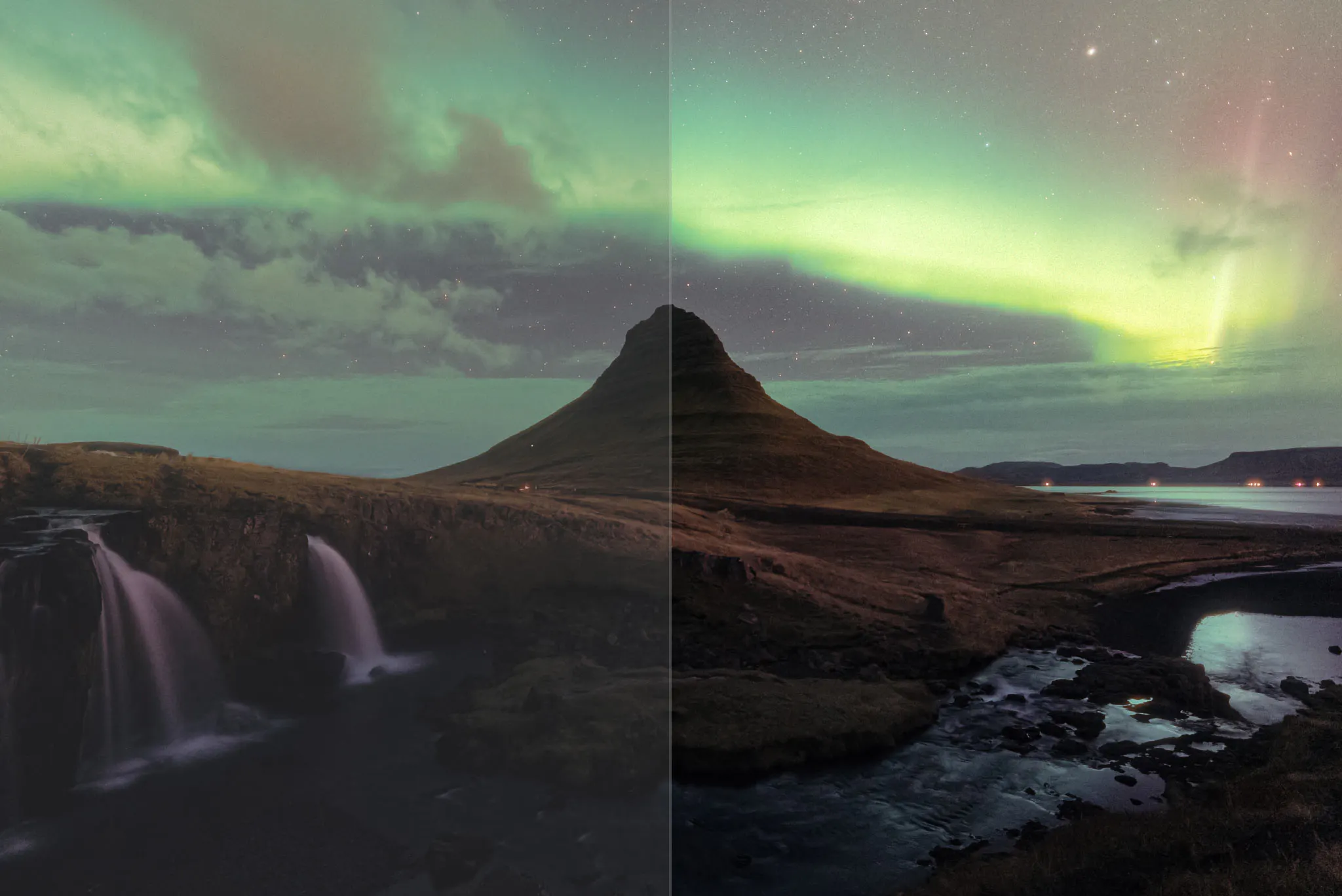
All films naturally differ in contrast and in their black and white points. At the sampling stage, we avoid digital correction in order to preserve each film’s individual characteristics, ensuring a faithful and convincing emulation. As a result, Dehancer film profiles may appear low in contrast by default, but they retain plenty of headroom for creative adjustment.
The Expand tool provides separate manual controls for the black and white points in relation to the output color space.
We recommend adjusting Expand after film preset selection.
Black and White Points
Set the black and white points to ‘fit’ an image into a dynamic range of your output color space. It also enhances visual contrast and punch.
You will probably revisit this tool several times after making image adjustments with other tools.
Color Mode
The Color Mode option can be useful if you encounter unwanted color shift or oversaturation. In the Luma mode Expand affects only the luminance component of an image, but does not affect its color, so the changes in contrast have no effect on the saturation.
Tip: If your source doesn’t have enough headroom for Expand adjustment, try to enable the Analogue Range Limiter checkbox in the Print toolset which gives more ‘relaxed’ extremes.
Also you can use Film Compression tool to eliminate clipping and make the highlights more textured.
Print Media
The real media defines the artifact from the evidence. A print can be exhibited, a positive can be projected.
But the negative is not a piece of art yet, and scanning software does not reproduce the analogue reversal process properly. Negative is made for printing.
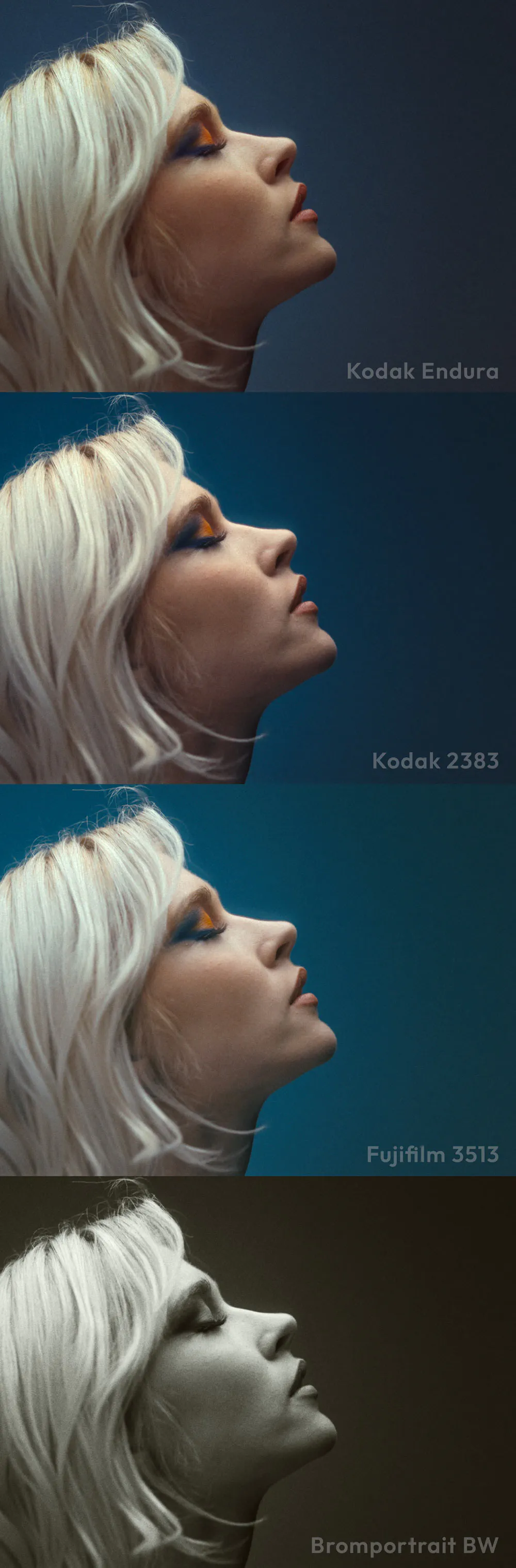
For many years, Kodak Endura Paper was the standard for color prints. We have printed negative films to capture all film and media characteristics.
Analogue cinema relies on screen projection. There are two legendary Print Films in Dehancer – Kodak 2383 and Fujifilm 3513.
BW negatives are printed on Bromportrait BW Paper with its warm tone, characteristic contrast and texture.
Each print media is a powerful creative tool, having its character, color and and latitude. We carefully preserve this heritage.
💡 Related articles:
Linear
Only a ‘pure’ profile of a selected film is used, without the influence of the characteristics of photographic paper.
Cineon Film Log
Selected film is ‘printed’ into Cineon film scan format. This parameter also makes it possible to ‘print-out’ negatives outside Dehancer.
Kodak 2383 Print Film, Fujifilm 3513 Print Film
Selected film is ‘printed’ onto Kodak Vision Color Print Film 2383 or Fujicolor Positive Film Eterna-CP 3513DI.
Kodak Endura Glossy Paper
Selected film is ‘printed’ onto Kodak Endura Premier Glossy Paper.
Slavich Bromportrait BW Paper*
We optically print BW negative films on this wonderful paper with expressive texture and noble warm tone.
You can set Print / Saturation = 0 to get pure black & white.
Film and Print Combination
It’s generally best to follow the analogue pipeline when choosing a print medium if you need an authentic look. Try these combinations for best results:
Color negative films and
- Kodak 2383
- Fujifilm 3513
- Kodak Endura Glossy Paper
BW negative films and
- Slavich Bromportrait BW Paper*
Positive films, Instant films, Exotic processes and
- Linear
* For technical reasons, Slavich Bromportrait BW Paper appears in the interface under the name of Kodak Endura. We hope to fix this in the updates.
Experimentation is welcome. You know, almost anything is possible in a real darkroom. For example, you can create an intermediate negative duplicate from a positive film frame, then print it on photographic paper or print film. All you need is a slide duplicating device, a color enlarger and print development.
Print Settings
Relying on our experience in optical printing and our research into the psychophysiology, we have developed the dedicated print settings that faithfully reproduce the analog processes:
Target White
Only available when Kodak 2383 Print Film or Fujifilm 3513 Print Film is selected. Allows to adjust the temperature of the printing light source in the 5500-6500 K range.
Exposure (Ev)
The Exposure tool is based on characteristic curves of optical prints. With the analogue approach to the exposure correction it naturally affects the image contrast too. This parameter is measured in the exposure value steps (Ev).
Tonal Contrast
The Tonal Contrast tool inherits a nonlinear nature of analogue processes. Increase the value to give more punch or apply negative correction to visually ‘soften’ an image. Notice that changing the contrast also visually affects the exposure, which is also typical for analogue media.
Color Density
Traditional ‘digital’ saturation affects all hues equally and linearly. On the contrary, the Color Density tool provides perceptual saturation control, i.e. it affects aesthetically significant colors in a higher degree.
Color Density can be used to quickly solve many specific problems – for example, to mitigate oversaturated accents or emphasise meaningful colors without painstaking adjustment.
Saturation
This is a more "traditional" saturation control based on altering the chroma components in YCrCb space. This correction is available only in the reduction way due to the fact that oversaturation usually degrades the aesthetics.
Analogue Range Limiter
By default, Print adjustments work within the boundaries of the ‘digital’ contrast range. Black and white points are normalised to the digital brightness values of 0 and 100, respectively.
To obtain a softer image and improve the detail at the extremes of the tonal range, enable the Analogue Range Limiter which uses the uncorrected black and white point values as they were measured on the reference prints.
Tip 1: Even though Tonal Contrast uses sophisticated nonlinear compression, it may lead to some clipping at high values. If this happens, revisit Expand to set a more ‘relaxed’ cutoff for black and white points or enable the Analogue Range Limiter checkbox to get more headroom for processing. Also you can use the Film Compression tool to make the highlights more textured and smooth out the clipping.
Tip 2: To get a saturated and expressive image, we recommend starting with decreasing the exposure. You can adjust the Color Density to emphasise your colors. To significantly increase the overall saturation, use Color Boost in Film Developer.
Tip 3: Some combinations of the print settings may produce colors falling out of the gamut, with visible artefacts, especially when Color Density is increased. In this case lower the contrast and saturation or try another film or print media profile.
CMY Color Head and Print Toning
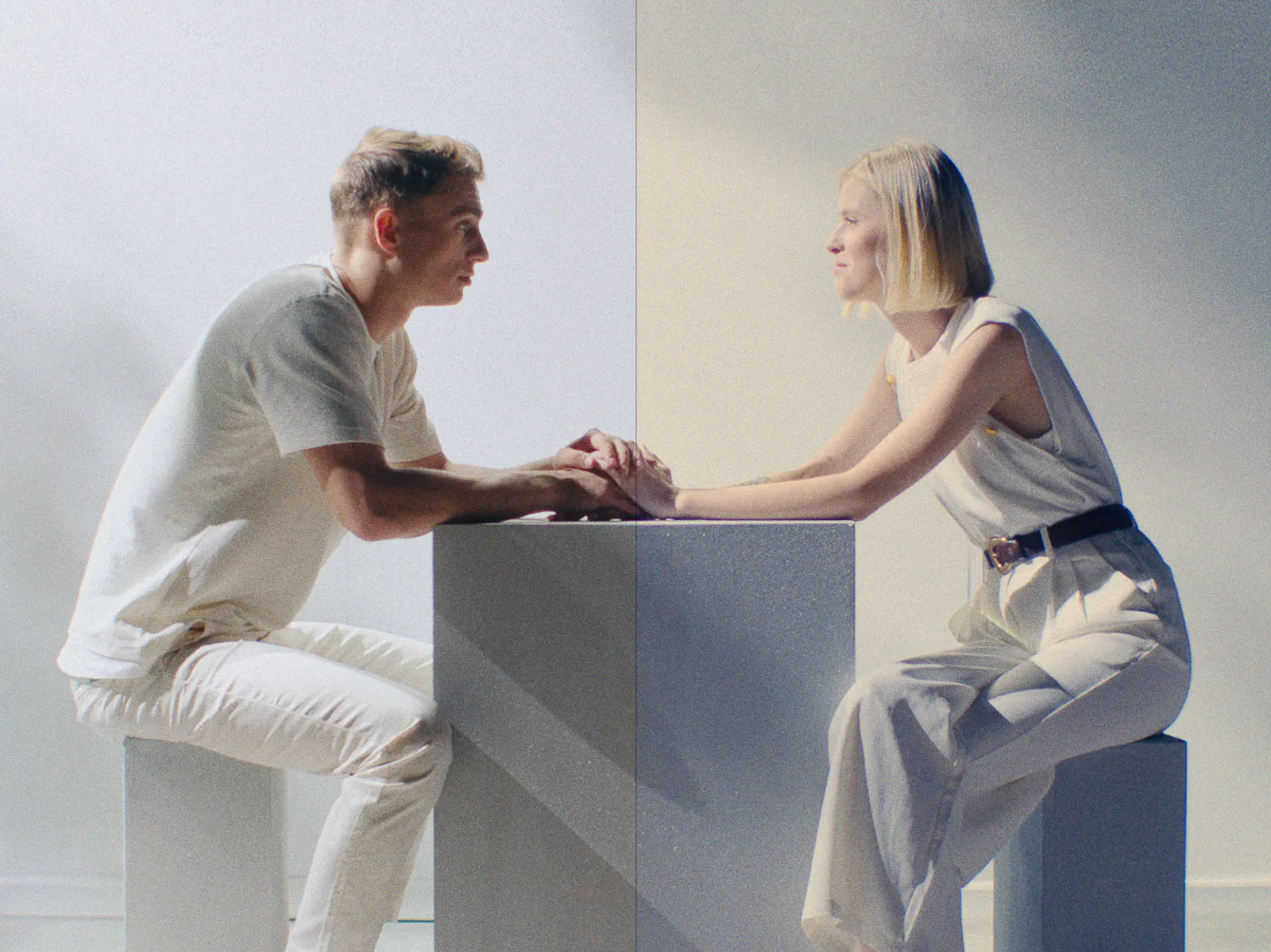
Subtractive CMY Color Head is based upon the analogue color correction tool integrated in photo enlargers for optical printing.
The similar method is used in Printer Lights – a special device for optical movie printing to a positive film.
In Dehancer Color Head is represented with 3-axis CMY-RGB controls and successfully combines both devices.
💡 Related article:
Yellow – Blue, Magenta – Green, Cyan – Red
The effect of changing these parameters corresponds respectively to their labels.
Gang
Dehancer uses the real-life measured color filters values.
Thus, even with the identical adjustments in all three axis, the color changes are visible. For your convenience, we have provided the Gang checkbox, which allows changing all three filters at once.
Shadows Tone, Midtones Tone, Highlights Tone
In a general analogue sense, toning refers to giving a paper print or film positive additional tints that are not originally characteristic of a particular media combination. This technique is widely used to give a special character or atmosphere when the original film properties are insufficient.
In addition to the natural variations across the tonal range, a print can be intentionally colored in the shadows, midtones, or highlights.
Toning can be achieved using a variety of methods, including special processing, additional treatment, and printing methods.
In Dehancer, the toning control is based on split printing through color filters, with masking performed automatically.
You can control the color temperature separately within three equally quantised ranges – in shadows, midtones, and highlights.
Preserve Exposure
During the analogue printing the exposure is affected by color filters. Dehancer inherits this behaviour. When Preserve Exposure is set to 100%, it automatically compensates any exposure changes, introduced by the Color Head corrections.
Impact
This slider adjusts an overall impact of the effect, acting like ‘opacity’.
Tip 1: Prefer the Color Head tool for creative adjustments, while leaving the Input Temperature and Tint compensation for strong WB deviations of a source material.
Tip 2: Setting the Preserve Exposure slider to zero results in exposure changes during color correction – just the way it does with the analogue printing process. This is an additional way to naturally change an image density in Dehancer.
Film Grain
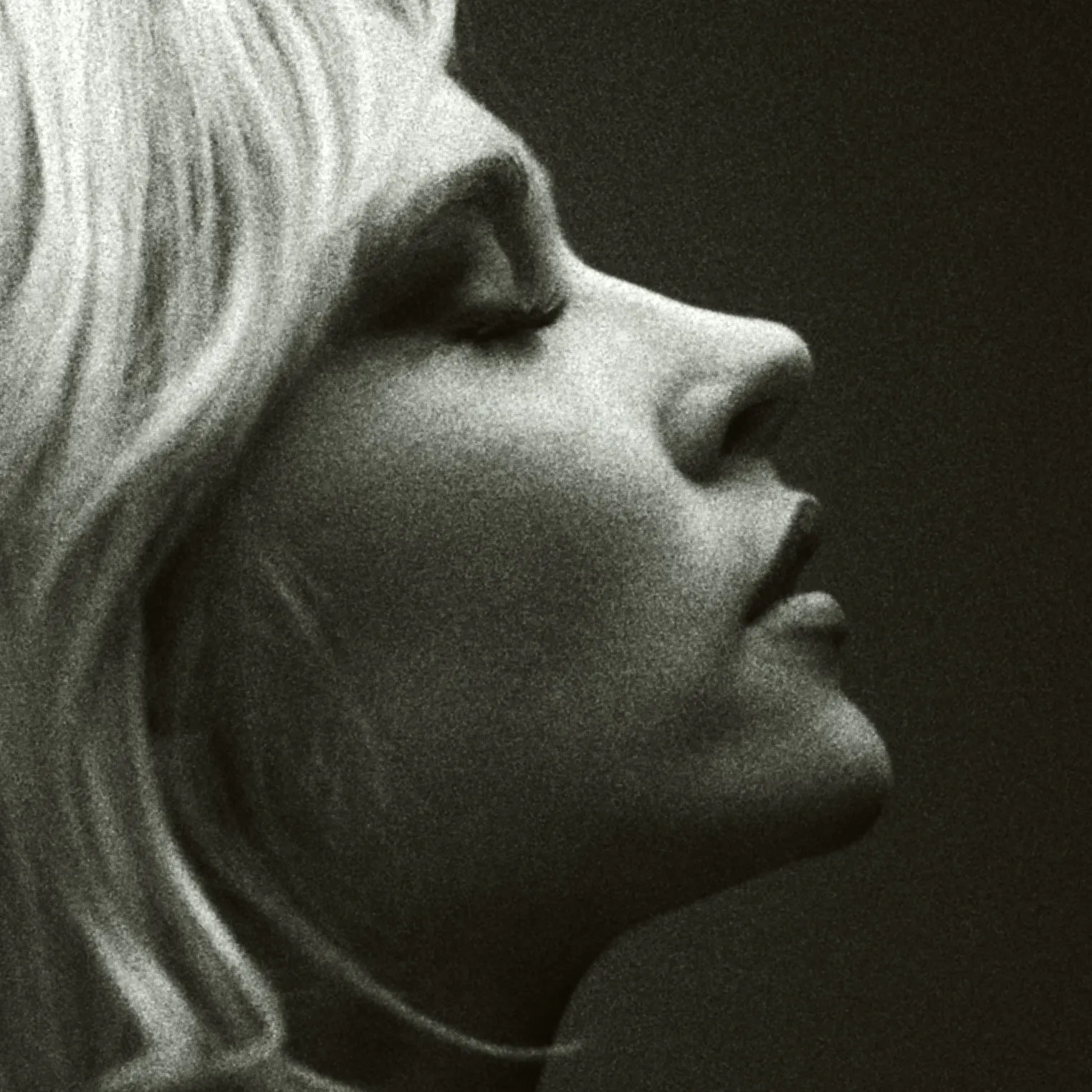
On real film, grain isn’t something applied on top of an image; it forms the image. In fact the photo itself entirely consists of grain.
Dehancer literally reconstructs the shot from within, using local color and brightness data combined with a detailed physical model of film emulsion.
💡 Related article:
Grain Profiles
We’ve created grain profiles for 8, 16, 35 and 65 mm, each avilable in three versions: ISO 50, 250 and 500.
In order to change the parameters of any profile, you must first select the most suitable one and then switch to Custom mode.
All the usual effect settings will be available to you, and the parameter values will match the last selected profile.
Custom Setings
Custom settings let you fine-tune Film Grain any way you like.
Film Type
Negative – grain is more pronounced in the highlights, with slightly higher micro-contrast, typical for negative film.
Positive – uses a classic algorithm that produces softer grain, less visible in the highlights, characteristic of positive film.
Processing Mode
Analogue – the original grain model. Requires more processing power but delivers the most lifelike emulation.
Noise – a high-performance simplified grain model. Useful for dithering tasks (for example, reducing posterization), for low-resolution projects, and for draft exports.
Size
Controls the size of silver-halide granules. A higher value corresponds to a more photosensitive and therefore more granular emulsion.
Amount
Sets the total amount of generated grain, corresponding to the optical density of ‘film’.
Shadows, Midtones, Highlights
Adjusts how grain is distributed across the tonal range by setting grain levels independently for shadows, midtones, and highlights. This helps match the texture of your scene or grading style.
Film Resolution
Usually the smallest image detail on film does not exceed the grain size.
Dehancer Film Grain accounts for this by design, and you can adjust the effect manually to mimic a specific film resolution or compensate for softness.
A value of 100 preserves the original sharpness of the source image. Lowering the Resolution results in gradual loss of detail, while an image becomes more blurred. A value of 50 represents detail balanced with the current grain size and amount.
Chroma
Grain chromaticity may vary on different films. This setting controls the saturation of the dye granules in film emulsion.
Tip 1: On the real film, grain can be found in both the deepest shadows and the lightest highlights. But it cannot be visible on pitch black or pure white – technically there’s no detail in there. That is why Film Grain naturally affects black and white points, lowering visible contrast. Expand correction is recommended to regain the contrast.
Tip 2: If the grain still appears too strong, even with minimum Size and Amount, try lowering the Shadows, Midtones, and Highlights values, and use Film Resolution to counter excessive sharpness. Also you can try different grain types and processing modes.
Halation
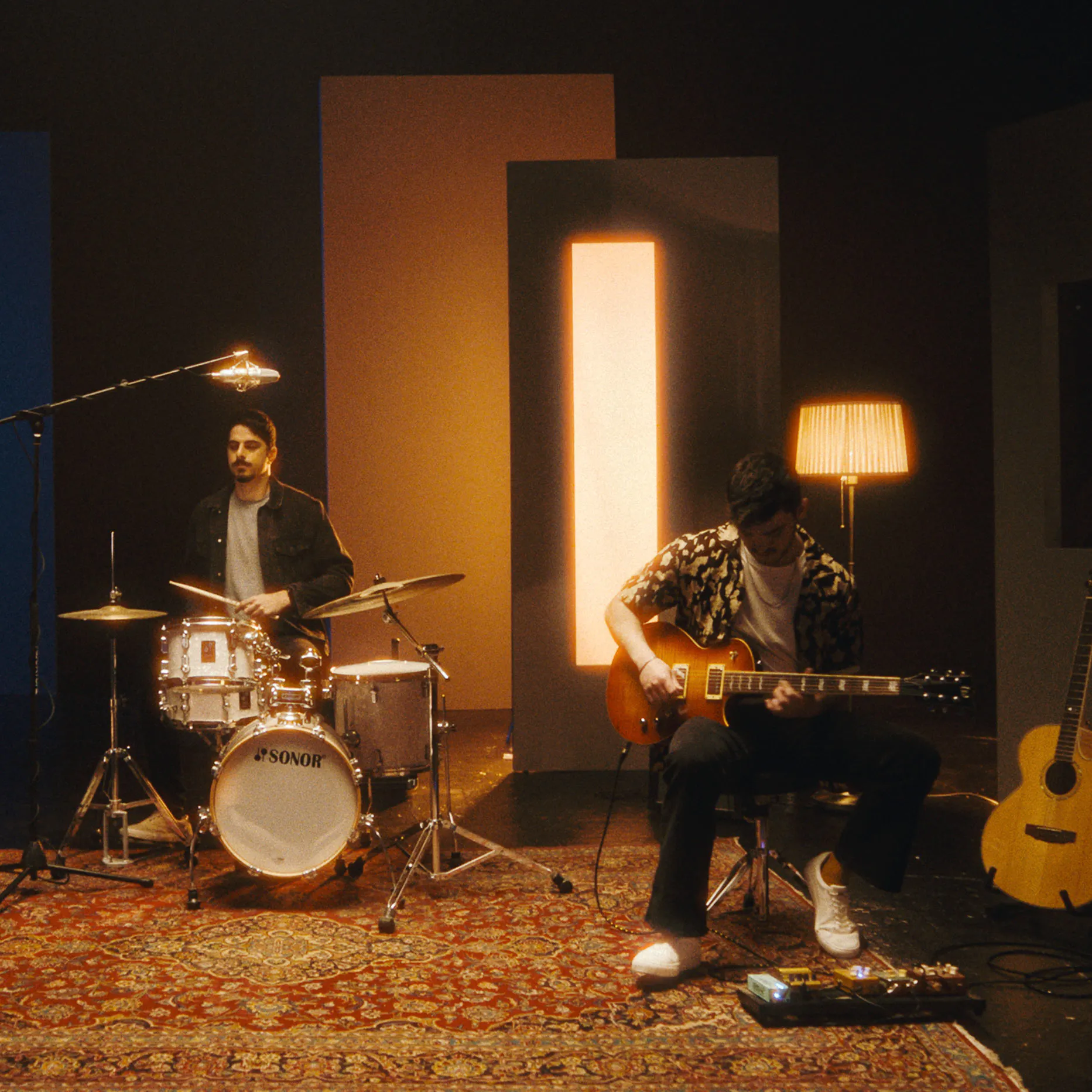
Halation is the film emulsion effect visible as the local red-orange halos around the bright light sources, specular highlights and contrasting edges. Also, halation may produce a well pronounced red glare in the midtones, mostly affecting the skin tones.
💡 Related article:
Halation Profiles
There is 8 basic profiles with average values for the main film formats that solve most creative tasks and provide a convenient basis for creative adjustments.
Each Halation profile has two versions – a standard emulsion and a film of the same format, but with the anti-halation layer removed (No Remjet). On films without remjet, Halation is usually excessively pronounced.
In order to change the parameters of any profile, you must first select the most suitable one and then switch to Custom mode.
All the usual effect settings will be available to you, and the parameter values will match the last selected profile.
Custom setings
The Custom settings allow you to configure Halation as you like:
Source Limiter
This setting defines the minimum light source brightness that is able to produce halation. The default value = 0 means that even the weakest source is able to produce halation. By increasing this value, you can cut the effect produced by low intensity lights.
Background Gain
This parameter sets the range of the background tones on which halation becomes visible. Default value allows halation to appear on most backgrounds. Decreasing this value eliminates the effect over the lighter ones.
Smoothness
This integral parameter controls the distribution of the halation effect between the large and small sources, visually smoothing smaller halation details. Increasing the Smoothness value reduces the effect around the point sources in favour of the larger areas. Setting the Smoothness to zero leads to the most detailed halos.
Local Difusion
This parameter defines how far the light spreads in an ‘emulsion’. The higher the Local Diffusion value, the larger the geometric size (radius) of the halos.
Global Difusion
Global Diffusion controls the degree of the secondary glare produced by scattered light. This is a more global effect that affects mostly low-contrast midtones and also enhances the primary halation.
Amplify
It is important not to confuse this setting with the Impact as the Amplify affects the sensitivity of an ‘emulsion’ to the scattered light, not the opacity of the effect. Increasing the Amplify value makes the effect more pronounced and shifts the halation toward yellow hues.
Hue
This parameter modifies the sensitivity of the green layer of an ‘emulsion’ to the scattered light. Use this setting to better match halation hues to a scene in the wide range from cool reds to warm yellows.
Blue Comp.
Cool backgrounds usually dampen the halation. Blue Compensation allows to counterbalance this effect.
Impact
This parameter can be conventionally referred to as ‘opacity’, since it controls not the physical parameters of the emulation, but the overall transparency of the superimposed effect.
Mask Mode
This checkbox enables a special preview mode which allows you to better control the settings with the effect preview isolated from the source image.
Halation + Defringe
In some cases chromatic aberrations interfere with the Halation effect. Defringe tool helps to deal with this issue.
Halation + Bloom
Usually these effects coexist on film and mutually influence each other. Therefore, it is generally best to use Halation and Bloom in tandem to get a more accurate emulation.
Tip 1: Basic Adjustment
Halation effect is most pronounced when Source Limiter is at its lowest and Background Gain at its highest settings, with Amplify set to maximum. It can be a good starting point – just gradually reduce the effect until getting optimal results.
Tip 2: Enhance Portraiture
Increasing the Global Diffusion can be an instant solution to naturally enhance any portraiture, filling the skin tones with a touch of vivid warm glare. Increase Source Limiter to control the effectower the skintone range.
Tip 3: Mask Mode visibility
Mask visibility depends on the exposition and contrast of the image. If Halation appears too dim or invisible in Mask Mode, try to temporarily increase the Amplify and Impact values.
Tip 4: Simple way
There is a simple way to fine tune these effects: Dial Amplify to max, adjust limiting and details, then lower Amplify to the reasonable value and the Impact slider to the desirable amount.
Bloom
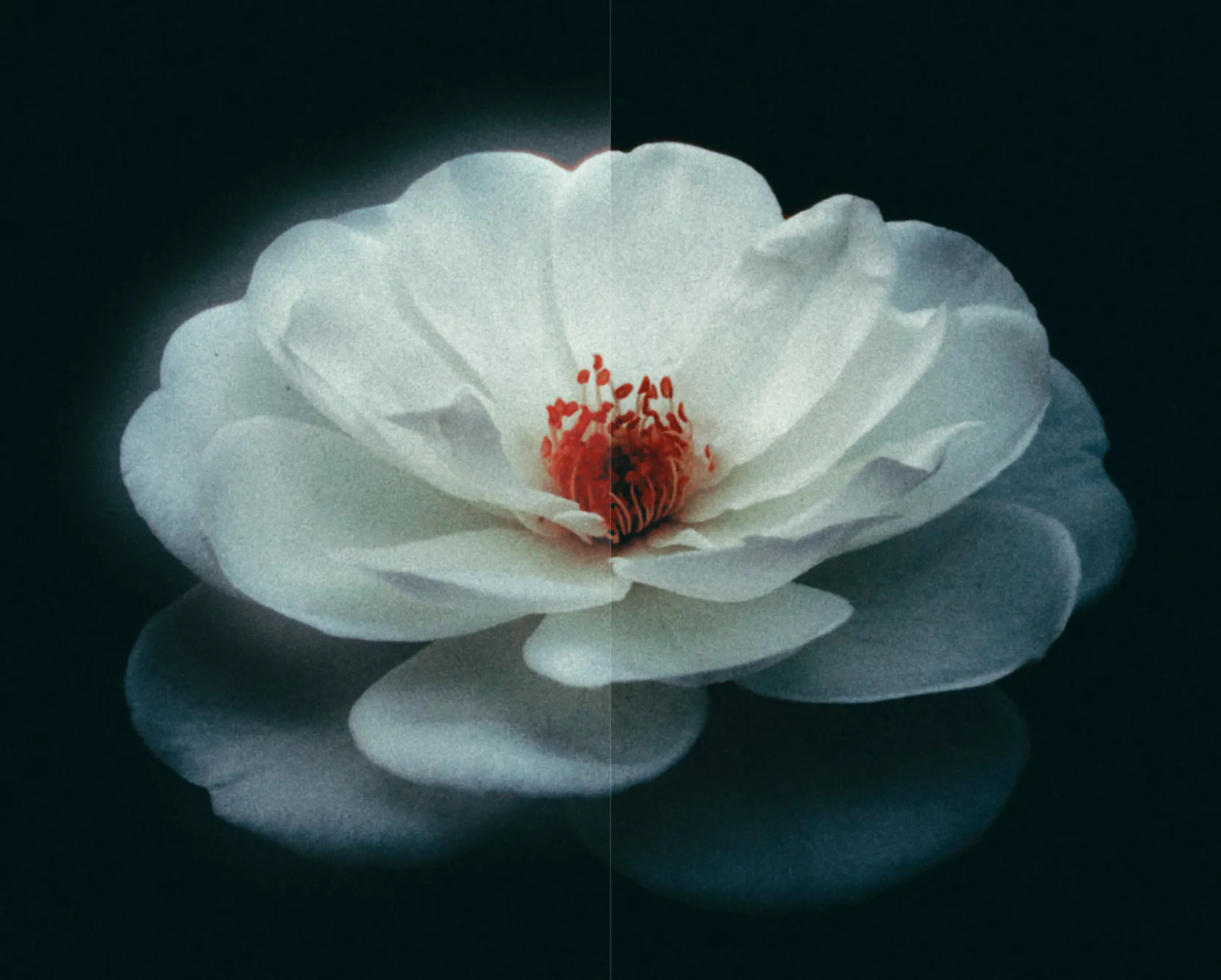
Bloom emulates the combined effect of light dispersion along the boundaries of contrasting image areas – an effect that originates in the optical system and is then amplified in the emulsion layers.
Note that bloom has little in common with optical soft-effects: it appears only around light sources.
💡 Related article:
Bloom Profiles
To emulate the Bloom diffuse glow effect, we’ve created four versatile profiles for 8, 16, 35, and 65 mm film formats. These profiles use average settings that capture the general character of each format.
To adjust any profile, first select the one that fits your image best, then switch to Custom mode. All Bloom controls will become available, and their initial values will match the last selected profile.
Custom setings
The Custom settings allow you to configure Bloom as you like:
Highlights
This setting acts as the ‘sensitivity’ of the effect and determines the brightness threshold at which bloom appears.
The higher the value, the wider the tonal range that produces blooming.
Source Limiter
Source Limiter cuts off unwanted blooming from the lower end of the tonal range defined by Highlights.
Details
Controls how the bloom is distributed between large and small light sources.
Increasing the value makes the effect more detailed and precise – right down to tiny point sources. Lower values produce a broader, more global glow across the frame.
Difusion
Controls how far the bloom spreads from its boundaries. The higher the Diffusion value, the larger the geometric size of the glow radius.
Amplify
Controls the overall strength of the effect by virtually ‘changing’ both the brightness of light sources and the diffusion properties of the emulsion.
Higher values make the effect more prominent.
Save Lights
Bloom affects not only surrounding areas but also increases the brightness of the light source itself.
In a digital pipeline, this may cause clipping. Save Lights protects highlights from possible clipping introduced by the Bloom effect.
Saturation
Bloom naturally inherits the hue and saturation of the light source. This setting allows you to reduce its saturation to your taste.
Impact
This parameter can be loosely described as ‘opacity’. It doesn’t affect the physical parameters of the emulation, but controls the overall transparency of the superimposed effect.
Mask Mode
This checkbox enables a special preview mode that isolates the effect from the source image, giving you more precise control over the settings.
Tip 1: Basic Adjustment
The Bloom effect is strongest when Source Limiter is set low, Highlights high, and Amplify at maximum. It can be a good starting point – just gradually reduce the effect until getting optimal results.
Tip 2: Reducing halo artifacts
Sometimes with extreme settings Bloom may produce excessive halolike artefacts. In this case try to increase the Save Lights, decrease the Amplify value and disable the Defringe tool.
Tip 3: Mask Mode visibility
Mask visibility depends on exposure and contrast. If Halation looks too faint in Mask Mode, temporarily increase Amplify and Impact to make it easier to judge.
Film Damage
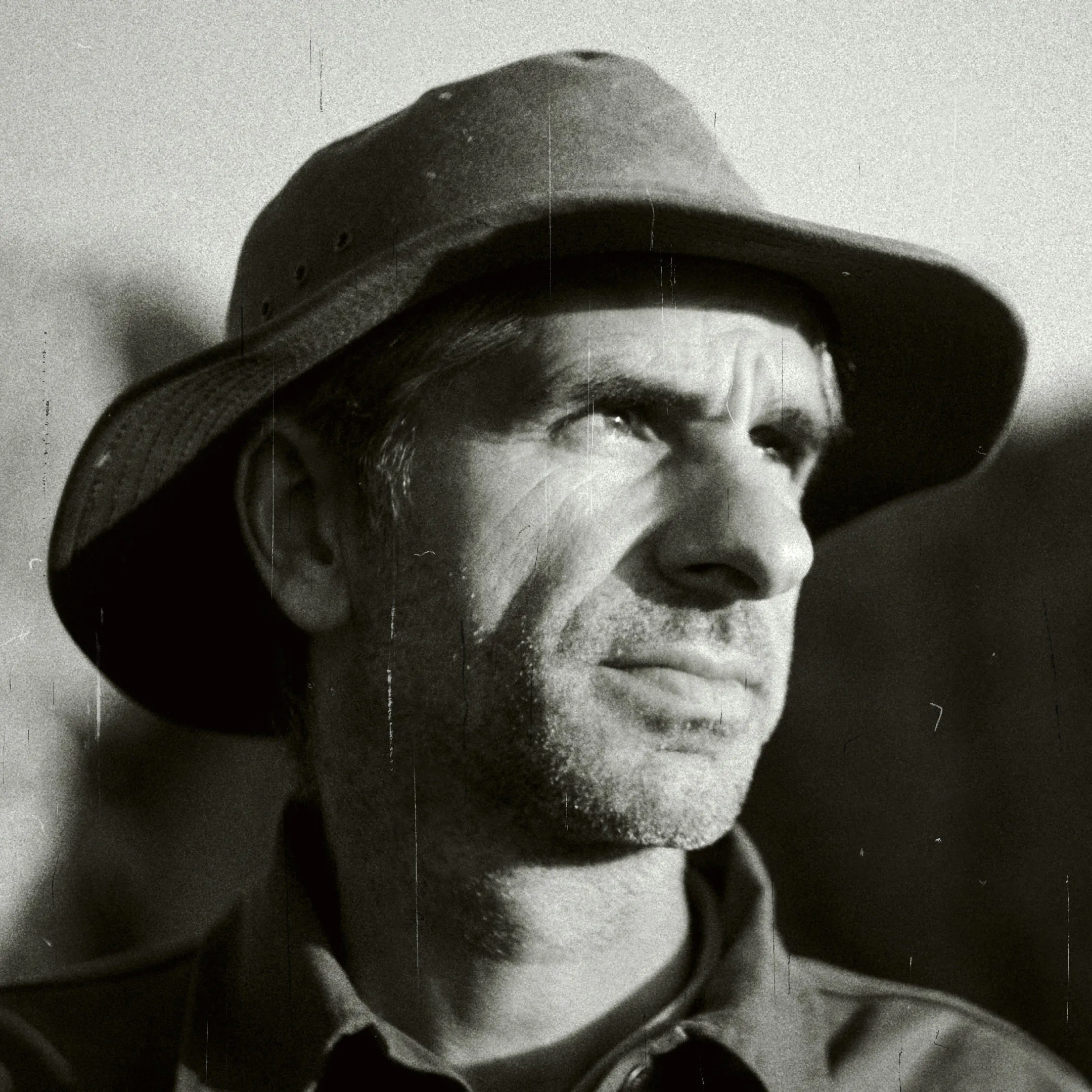
Dust, hair, scratches, stains, and emulsion imperfections are inevitable on film. These defects are usually retouched in post-production. However, in some cases this ‘dirt’ enhances the sense of a natural medium and adds a feeling of authenticity and provenance.
💡 Related article:
Click the [Lock] button to keep Film Damage adjustments when switching presets or snapshots.
Film Damage Profiles
We’ve created profiles that represent the most characteristic defects of major photographic film formats. The smaller the film format, the larger the artifacts appear relative to the frame, and the more frequently they occur.
To adjust any profile, first select the most suitable one, then switch to Custom mode. All standard effect controls will become available, with parameter values inherited from the selected profile.
Custom Setings
The Custom settings let you fine-tune Film Damage to your taste.
The Film Damage tool is composed of several modules, each responsible for a specific type of artifact:
1. Dust
Dust Amount
Sets the total number of dust particles visible in the frame at the same time.
Scale
Controls the overall scale of the dust, acting as a single magnification factor for all particles.
Size Balance
Adjusts the ratio between small and large dust artifacts.
At the minimum value, only the smallest particles are visible; at the maximum, only the largest ones. Mid values produce a balanced mix of different sizes.
White-Black
Controls the balance between light and dark dust artifacts.
At the leftmost position, only light particles appear; at the rightmost, only dark ones. The middle position produces an even mix of both.
Dust Enabled
Enables or disables the Dust effect entirely.
2. Hairs
Hairs Amount
Sets the total number of hair artifacts visible in the frame at the same time.
Scale
Defines the overall scale of hairs — a single magnification factor applied to all particles.
Size Balance
Controls the distribution of hair sizes.
At the minimum, only the smallest hairs appear; at the maximum, only the largest ones. The middle position produces a balanced mix of different sizes.
White - Black
Adjusts the balance between light and dark hair artifacts.
Hairs Enabled
Enables or disables the hair artifacts entirely.
3. Scratches
Scratches Amount
Sets the total number of scratches visible in the frame at the same time.
Scale
Controls the overall magnification of scratches relative to the frame size.
Size Balance
Adjusts the proportion between small and large scratches.
White - Black
Scratches may appear light or dark depending on the production stage at which they were introduced. This control sets the balance between light and dark scratches.
Scratches Enabled
Enables or disables scratches entirely.
4. Global Setings
Total Amount
Adjusts the overall intensity of all artifacts at once, without the need to tweak each type individually.
Global Period
Film defects are irregular along the length of a roll. Global Period controls how often artifacts appear from frame to frame.
Lower values produce a more even distribution, while higher values create longer sections with more or fewer defects. At Global Period = 1, neighbouring frames have nearly the same amount of dirt.
Global Opacity
Controls the overall visibility of the effect by adjusting artifact transparency. It does not change the number of artifacts, only the optical density.
Global Chromaticity
Dirt interacts with light in complex ways, depending on transparency, thickness, distance from the film surface, the depth of damage of the emulsion layers and their exposure.
As transparency decreases, light artifacts tend to appear cooler (bluish), while dark ones become warmer.
Global Chromaticity controls the overall saturation. At the minimum value, all defects appear strictly black and white, regardless of transparency.
Overscan
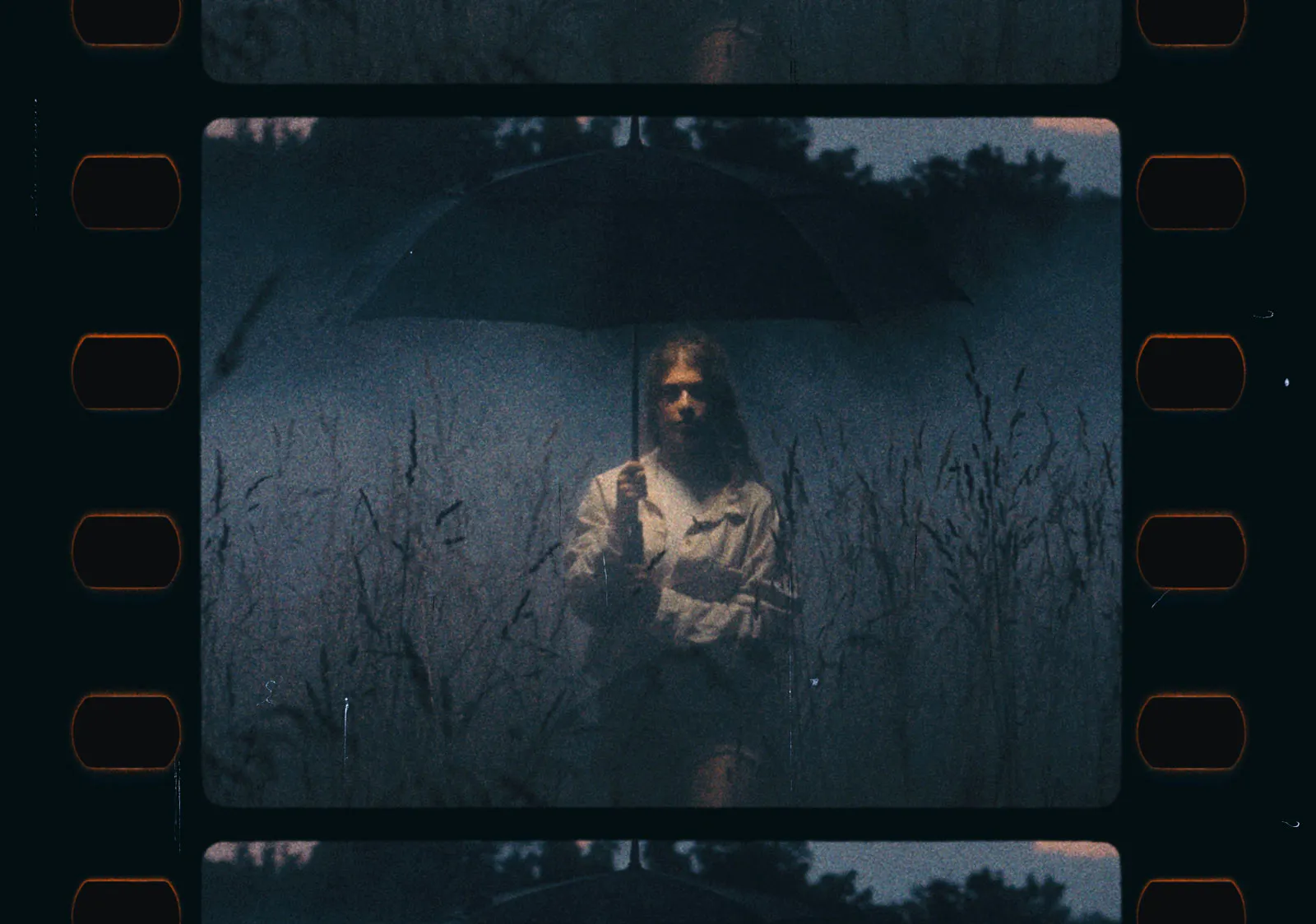
Film is usually scanned with some extra area for further processing. This may include interframe gaps, perforations, and parts of the previous and next frame.
Normally, scans are cropped to the exposed area, but sometimes the information outside the film gate is intentionally preserved – a technique known as overscan.
We have implemented the most common formats, and future updates will expand the tool with additional gates, elements and formats.
💡 Related article:
Click the [Lock] button to keep Overscan adjustments when switching presets or snapshots.
Gate Type
The film gate type defines the film format and the camera used. The following options are available:
- Super 8mm 1.33:1
Super 8 motion picture film with aspect ratio of 1.33:1 (4:3)
- Standart 16mm 1.37:1
16 mm motion picture film shot in standard aspect ratio of 1.37:1
- Super 16mm 1.66:1
Super 16 mm motion picture film with a 1.66:1 aspect ratio
- Ultra 16mm 1.85:1
16 mm motion picture film shot in aspect ratio of 1.85:1
- Super 35mm 1.37:1
35 mm motion picture film shot in standard aspect ratio of 1.37:1
- Widescreen 35mm 1.85:1
35 mm motion picture film shot in widescreen aspect ratio of 1.85:1
- Ultra Panavision 65mm 2.76:1
65 mm motion picture film shot in Ultra Panavision aspect ratio of 2.76:1
The 16:9 aspect ratio is not here, since it does not exist on the real film. The closest format is Widescreen 35mm 1.85:1 with a frame pitch of 3 perforation holes (3 perf), and it is cropped to 16:9 with minimal loss.
Gate Shape
The shape of the film gate depends on the specific camera. The most common options are:
- Neat Normal – standard frame with slightly rounded corners
- Neat Sharp – a frame with sharper corners with almost no rounding
- Neat Rounded – a frame with the corners rounded to a large radius
- OFF – Film Gate is disabled
Perforation Mode
The type of film perforation is represented by three options:
Negative, Positive, OFF
Negative scans are inverted, so backlit perforations appear black.
Positive film does not require inversion and preserves naturally white perforations. During postproduction they may be filled with the film base color – this behavior is emulated by the OFF mode.
Film Orientation
In cinema cameras film moves vertically through the film gate, while in most 35 mm photo cameras it travels horizontally. In both cases, the camera may be rotated 90° while shooting, and the scan can later be rotated in postproduction so the scene appears correctly.
However, in both cases, you can rotate the camera 90 degrees while shooting. The film scan can also be rotated on postproduction so that the scene will have the correct orientation when viewed.
The Landscape/Portrait option lets you emulate both horizontal and vertical film movement while preserving the normal subject orientation.
Scale
Adjusts image scaling (crop) after scanning. Range: 0 to 100. At Scale = 100, the film gate stays completely outside the visible frame.
Lens Zoom
Compared to the Scale parameter, Lens Zoom allows to zoom the scene inside the film gate, as if you were zooming the lens in or out while shooting.
At Lens Zoom = 100 (default), the image is zoomed in to cover the full film width, including the overscan area.
At Lens Zoom = 0, the image fits exactly within the Film Gate area.
Ofset X, Ofset Y
Sometimes after applying Overscan effects, you may want to reposition the image to better align it with the film gate.
Values of +100 and -100 shift the image by half of its width or height in the corresponding direction.
Gate Defocus
The sharpness of the frame depends on how tightly the film lies against the film gate, as well as on the camera type and its technical condition. In Dehancer you can adjust the amount of defocus from 0 to 100 conventional units.
Exposure
Depending on the backlight intensity and the exposure used during scanning, the halation effect along the perforation edges may appear more or less noticeable. The Exposure parameter adjusts the simulated scan exposure from –2 EV to +2 EV, allowing you to make the perforation edges either more pronounced or more subdued.
Flip
Normally, the layout of the perforations and the gate is determined by the film format and the technical standards of the camera and scanner. For creative purposes, however, the Flip option lets you mirror the perforations and frame horizontally without affecting the image itself.
Since Overscan uses several practical simplifications, it is more accurate to call it a stylization rather than a true emulation. For example, you can combine a Super 8 frame with 35 mm perforations. But it’s not completely untrue to analogue.
Vignete
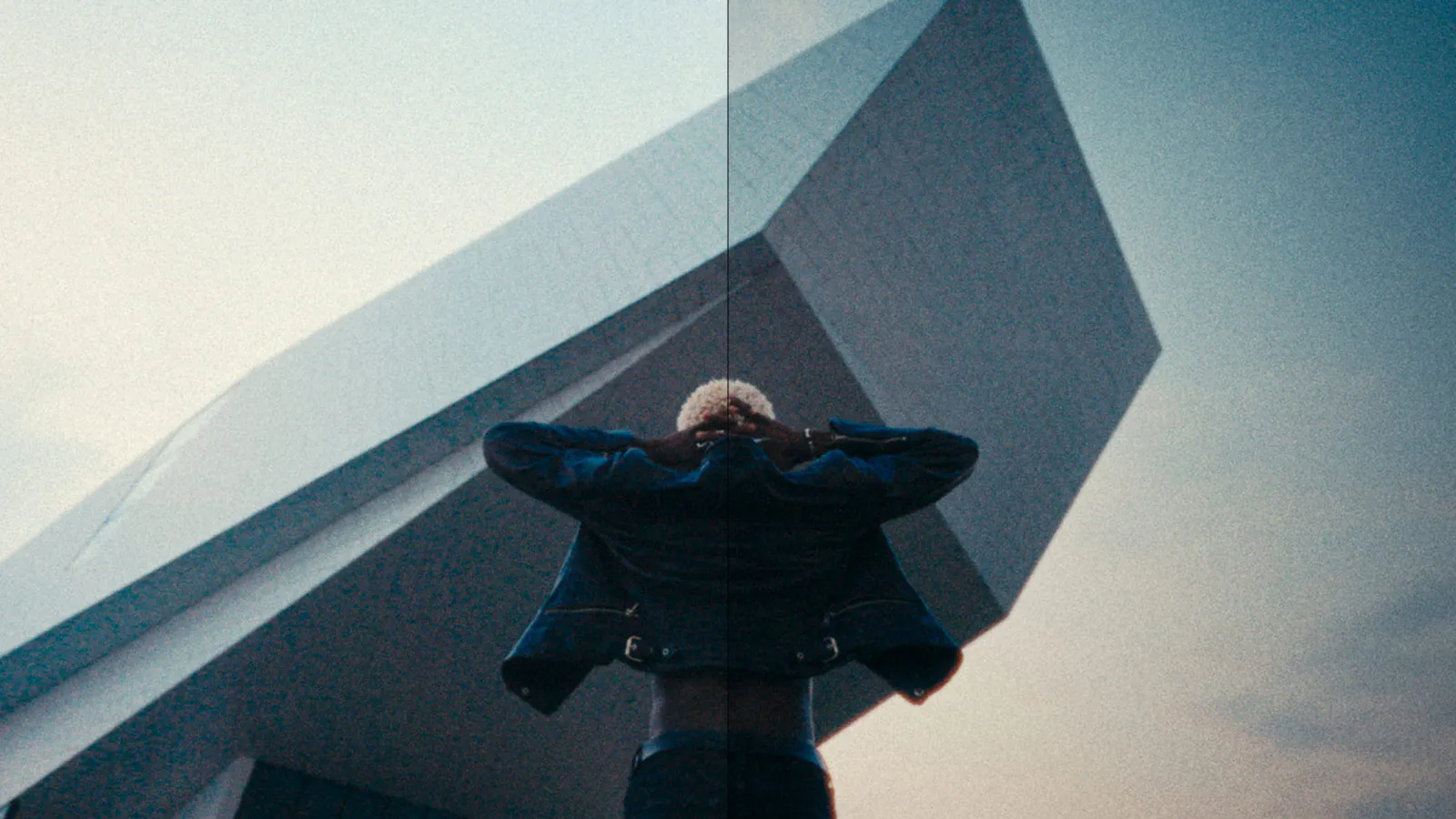
In lens design vignetting is usually considered a flaw.
Technically, yes. However, it’s also a proven creative tool that allows for better focusing on a subject and adds extra depth.
Also, in digital processing vignette with positive exposure values can be used to compensate for unwanted vignetting.
In Dehancer, the vignette uses the same exposure function as the Print tool, so it behaves in a natural, analog-like way.
Although the Vignette tool is located at the very bottom of the Dehancer settings, we recommend to adjust it at the beginning of color grading, since it affects the exposure and usually increases contrast between the edges and a frame center, thus requiring additional adjustments of the exposure and contrast.
Exposure
Negative Exposure values result in dark vignette while positive values, respectively, produce the light vignette.
Size
This setting defines a size of the vignetting circle.
Feather
Feather controls the amount of blur applied to the vignette circle.
Aspect Ratio
This parameter affects the proportions of the vignette, allowing to make it elliptical (in both the X and Y directions).
Position X, Y
Specify the X and Y offset of the vignette center relative to the frame.
Output
Total Impact
The Total Impact slider controls the overall impact of all the effects engaged in Dehancer plugin.
Total Impact is not equivalent to opacity function as it properly reduces the amount of all the effects including those based on geometric transformation.
User Data and Backups
Application catalog, settings, favorites, user presets, and diagnostic logs are stored in the following folder and its subfolders:
macOS
/Users/{user}/Library/Application Support/ com.dehancer.desktop
On mac the Library folder is hidden by default. To access it, open Finder, press [Cmd + Shift + G], type ~/Library and click [Go].
To unhide the Library permanently, open your Home (Username) folder, in the Finder menu select View → Show View Options and check the [Show Library Folder] option.
Windows
C:\Users\{User}\AppData\Local\dehancer\ com.dehancer.desktop
To backup or restore user data, simply copy and paste the files and folders manually.
Please note that Dehancer does not store source photos in the library, all image files remain in their original locations.
If a source file cannot be found, the photo will not be accessible in the catalog and projects. To fully restore your workspace after reinstalling the system or upgrading the computer, make sure your photos are placed in the same locations as before.
Uninstall
Warning, this action cannot be undone!
Original photos and exported images will not be affected.
Dehancer will be uninstalled completely. User catalog, projects, presets, and snapshots, will be deleted. However, you can make a backup.
macOS
1. Launch Dehancer, open Application Settings → License Activation, press [Manage Your Subscription] and deactivate the license.
2. Backup your user data (application settings, catalog, projects, user presets, and snapshots) if you plan to reinstall Dehancer later.
3. Delete the application folder:
/Applications/Dehancer Desktop.app
4. Delete the application container:
/Users/{User}/Library/Application Support/ com.dehancer.desktop.v7
5. Delete the user data container:
/Users/{user}/Library/Application Support/ com.dehancer.desktop
On mac the Library folder is hidden by default. To access it, open Finder, press [Cmd + Shift + G], type ~/Library and click [Go].
To unhide the Library permanently, open your Home (Username) folder, in the Finder menu select View → Show View Options and check the [Show Library Folder] option.
Windows
1. Launch Dehancer, open Application Settings → License Activation, press [Manage Your Subscription] and deactivate the license.
2. Backup your user data (application settings, catalog, projects, user presets, and snapshots) if you plan to reinstall Dehancer later.
3. Open the Add/Remove Programs or System/Apps/Installed Apps. Find Dehancer Desktop, righ-click and Uninstall.
4. Delete the application container:
C:Users\{User}\AppData\Local\dehancer\ com.dehancer.desktop.v7
5. Delete the user data container:
C:\Users\{User}\AppData\Local\dehancer\ com.dehancer.desktop